
How to use this guide
Protect the tenant boundary first.
Use the Control Centre for platform-wide work, then enter a business workspace only when the support or management purpose is clear. Every high-impact action should leave a durable audit trail.
Platform owner
Holds final authority for platform membership, security, provider policy, commercial configuration, governance, and production operations.
Platform operator
Performs authorised provisioning, support, provider activation, monitoring, and recovery without assuming owner-only authority.
Chapter 01 · Orientation
Administrator orientation
Enter platform context safely, understand the ownership model, and establish the evidence needed for support.
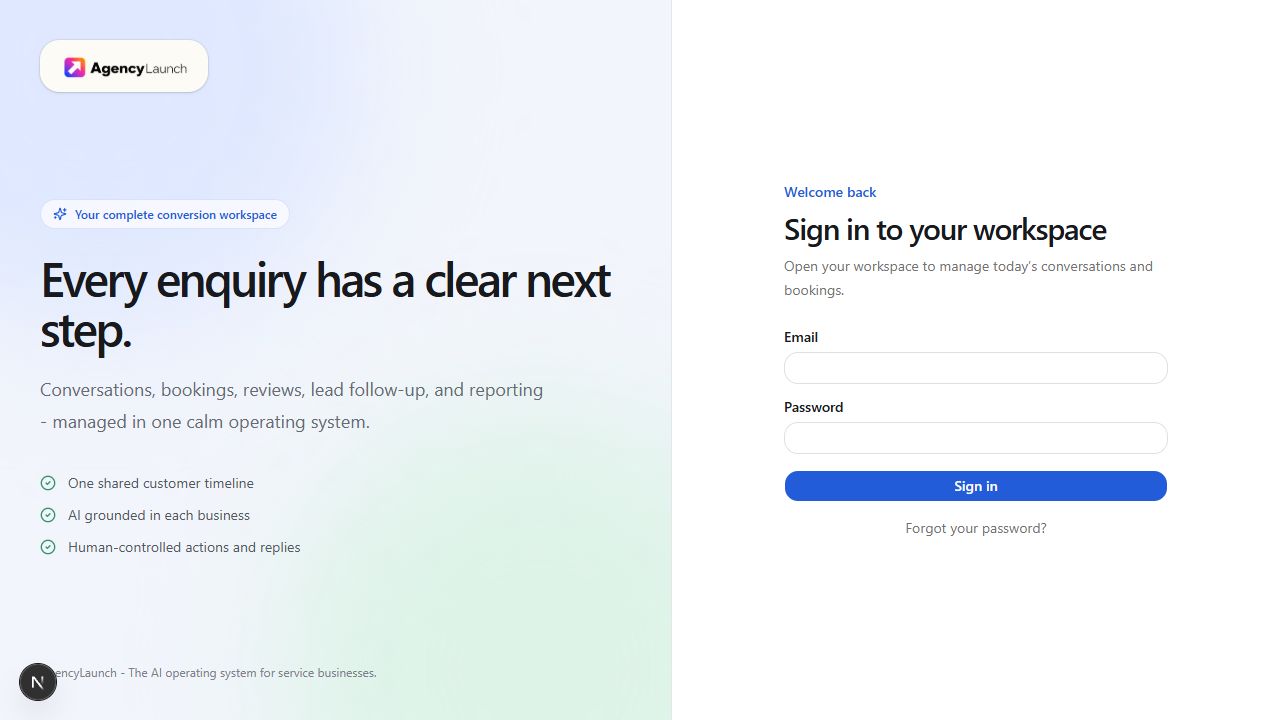
Start at: /signin, then /control
- Sign in with your named administrator account. Shared administrator accounts are not permitted.
- Open Control and confirm that your platform membership is active.
- Before entering a tenant, record the support purpose, affected partner or business, and relevant time window.
- Use summaries and scoped audit entries first. Enter a business workspace only when aggregate evidence is insufficient.
- After any mutation, confirm the result in both the target workspace and the audit trail.
Tenant and ownership model
- Platform: owns AgencyLaunch service configuration, security policy, templates, provider policy, release operations, and platform audit.
- Partner: owns its portal identity, partner team, and authorised management relationship.
- Business: owns its operational customer data, business team, service configuration, and privacy decisions.
- Management grant: gives a partner defined capabilities over one business. It does not transfer ownership.
Chapter 02 · Control
Platform overview and health
Read the Control Centre as a decision surface for tenant state, plans, usage, integrations, and recent administrative activity.
Start at: /control
- Review counts for active partners, managed and direct businesses, locations, members, plans, and subscriptions.
- Check integration health for AI, Google, email, calendar, domain, and automation services.
- Review recent audit activity for unexpected membership, grant, provider, billing, export, or offboarding actions.
- Open a partner or business record only after identifying the operational signal that needs investigation.
- Confirm whether the problem is platform-wide, partner-specific, business-specific, location-specific, or provider-specific before changing configuration.
Chapter 03 · White-label administration
Partner administration
Create and manage a partner organisation, portal identity, staff, and business management grants.
Start at: /control
Create a partner
- Select New partner.
- Enter the legal and display name, unique portal slug, support email, support URL, and lifecycle status.
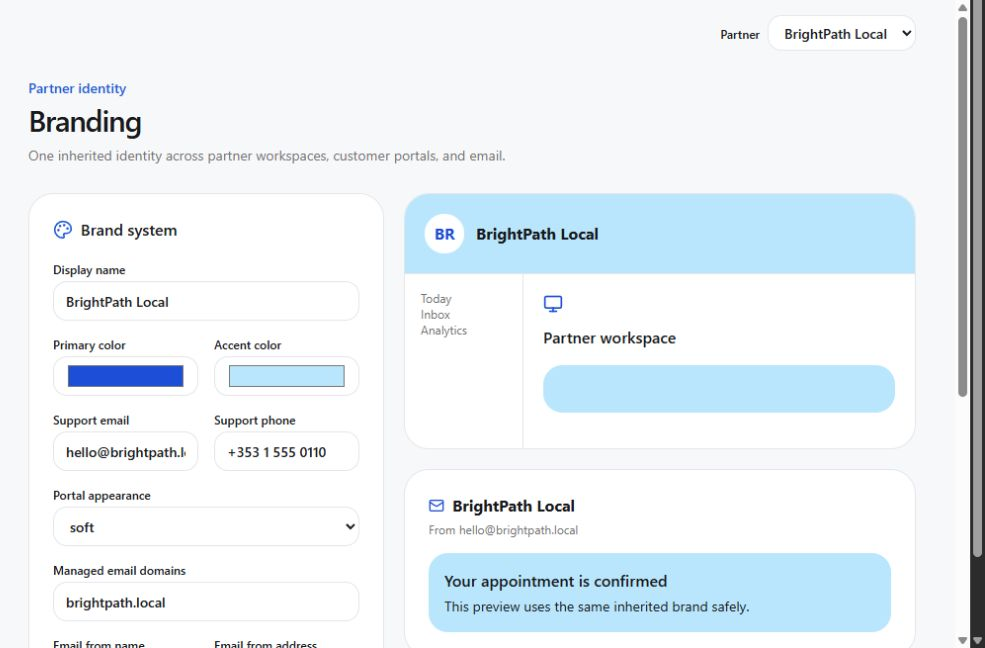
- Create the partner, then open its workspace and configure approved branding.
- Add the initial partner owner through the invitation workflow. Use a verified work address and confirm the role before sending.
- Record the partner's commercial model, support owner, and permitted business-management scope.
Manage branding and grants
- Verify logo, name, colours, portal slug, support routes, contrast, and mobile presentation.
- Partner owners can register one active application hostname. AgencyLaunch displays the exact Vercel TXT ownership challenge and CNAME routing target.
- Verify the hostname reaches Active before handoff. Test HTTPS, sign-in, reset email branding, invitations, customer portal links, and OAuth returns.
- For a replacement, keep the old hostname active until the new hostname verifies. Removal disables local routing before the Vercel record is removed.
- Use partner owner sparingly. Partner managers normally handle onboarding and support.
- Grant access per business and capability. Review the grant with the business owner.
- Revoke a grant when the management relationship ends. Confirm that partner staff lose business access immediately.
- Audit partner actions after any dispute, role change, grant change, or unusual export activity.
Chapter 04 · Tenant setup
Business provisioning
Create a direct or partner-managed service business with a complete operational profile, plan, owner, and readiness path.
Start at: /control
- Select New business and choose direct or partner-managed ownership.
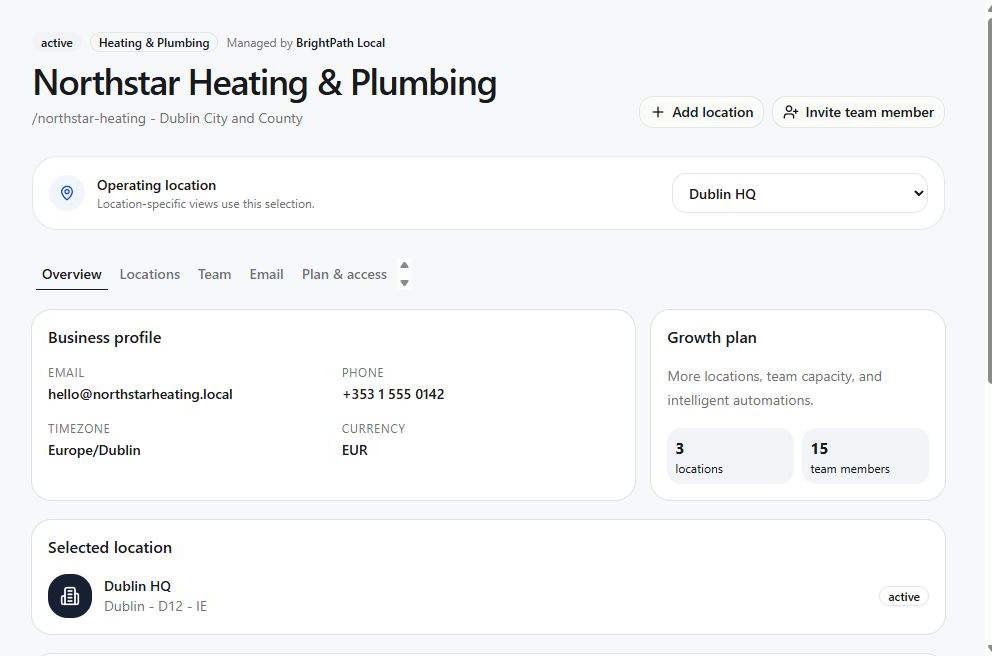
- Enter the business name, category, unique slug, primary contact, time zone, lifecycle state, and managing partner if applicable.
- Create the primary location with a validated address, contact routes, hours, and service areas.
- Capture services, appointment needs, quote and callback workflows, reputation location, and commercial goals.
- Assign the intended plan, payer model, entitlements, and usage allowances.
- Keep the agency and business as separate records. An agency owner uses Clients → Add client, including for their own business, and manages it with the agency login. A separate business-owner invitation is optional when an active managing agency has an active agency owner. Verify the management grant and scoped memberships; profile, location and plan activation checks still apply.
- Open the business workspace and run the readiness checklist before managed onboarding begins.
Partner procedure: use the detailed Twilio setup guide, including separate client subaccounts, priced number purchases, owned-number connection, Meta consent and actual delivery/reply checks. Existing parent-account numbers are preserved; account transfers remain support-assisted. Do not treat routing verification as a completed phone call or provider acceptance as confirmed delivery.
Chapter 05 · Operations guide · Communications
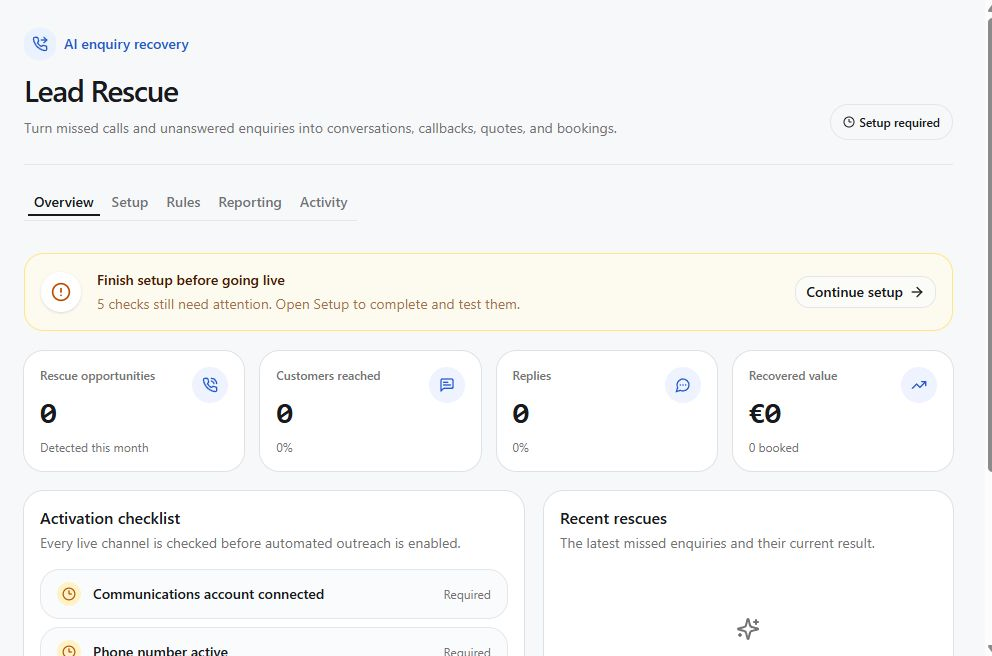
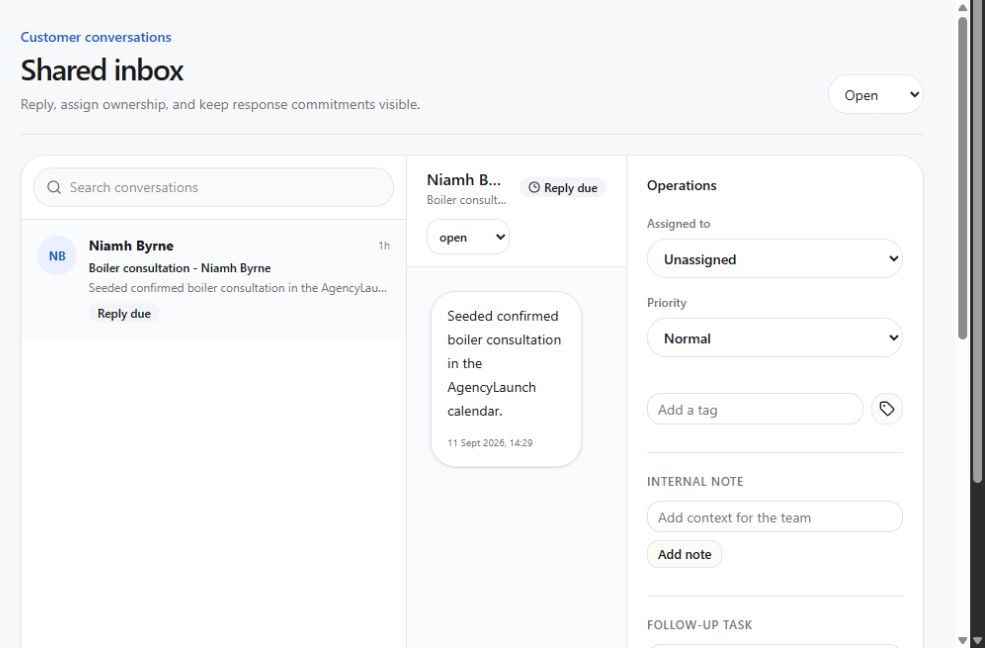
Lead Rescue administration
Provision and support missed-call recovery without exposing provider credentials to partner or business accounts.
Start at: /lead-rescue inside the selected business workspace
Production activation boundary
- Each partner connects its own Twilio Account SID and Auth Token in Partner branding → Phone & messaging. Tokens are encrypted server-side; global Twilio credentials are not the runtime source. Twilio bills the partner for rental and usage. Configure the integration encryption key and signed provider callbacks at platform level; never expose tokens in logs, manuals or browser storage.
- Acquire or connect a voice and SMS-capable number, then register the voice, call-status, inbound-message, and message-status endpoints.
- Require a valid signed webhook before accepting any provider event. Reject bad signatures without creating calls, messages, conversations, usage, or audit noise.
- Confirm the approved Meta/Twilio Tech Provider arrangement for each agency parent before enabling managed WhatsApp. Configure the approved Meta app, embedded-signup configuration, graph version, HTTPS origin and Partner Solution ID. Sender registration, template approval, a delivered test and an inbound reply are required; the business owner completes Meta consent without a Twilio account.
- Confirm forwarding, SMS, WhatsApp, provider callbacks, retry behavior, and suspension in a controlled business before broad activation.
Managed setup sequence
- Confirm the business, legal contact route, time zone, plan entitlement, and management grant.
- Choose a managed number or connect the business number. Local mode is for development and demonstrations. Live mode uses the configured provider account.
- Configure forwarding destinations in priority order. Run the forwarding test and confirm the intended team receives the call.
- Connect SMS and run its delivery test. Connect WhatsApp, verify the sender, and confirm the missed-call utility template is approved.
- Review quiet hours, message frequency, opt-out handling, autonomy, escalation, booking, quote, and callback permissions.
- Activate only when every required checklist item is Ready. Use the local missed-call simulator before any live provider cutover.
- Verify the resulting call, contact, opportunity, conversation, message, usage, report, notification, and audit records.
Provider and webhook controls
- Voice, call-status, inbound-message, and message-status endpoints verify the provider signature before accepting any event.
- Provider credentials remain in the deployment environment. They are not stored in tenant records or displayed to partner and business users.
- Every outbound command uses an idempotency key, bounded attempts, delivery leases, safe errors, and retry scheduling.
- Opt-out keywords immediately create consent withdrawal evidence and prevent further automated outreach on that channel.
- WhatsApp messages outside the customer window require an approved template. The strictest platform, partner, business, or conversation autonomy rule wins.
Evidence to retain
| Operation | Evidence |
|---|---|
| Inbound call | Call record, provider call ID, state transition, and signed webhook receipt. |
| Outbound follow-up | Command, communication message, provider message ID, attempts, and delivery state. |
| AI response | Approved knowledge citations, effective policy decision, conversation mode, and AI run. |
| Commercial usage | Communication usage, daily metric projection, billing reconciliation, invoice evidence, and export. |
Operational recovery
Delivery failure
Check connection state, sender, provider health, recipient format, suppression, retry count, and the safe error. Do not bypass opt-out or template policy.
Unexpected AI reply
Take over the conversation, inspect approved knowledge and citations, review the effective autonomy rule, and preserve the audit and AI run evidence.
Reporting mismatch
Compare the event milestones, projection receipts, daily metrics, communication usage, and billing reconciliation before changing commercial data.
Offboarding
Lead Rescue accounts, numbers, connections, templates, calls, messages, commands, usage, and projections are included in export, retention, and offboarding workflows.
Chapter 06 · Offline attribution
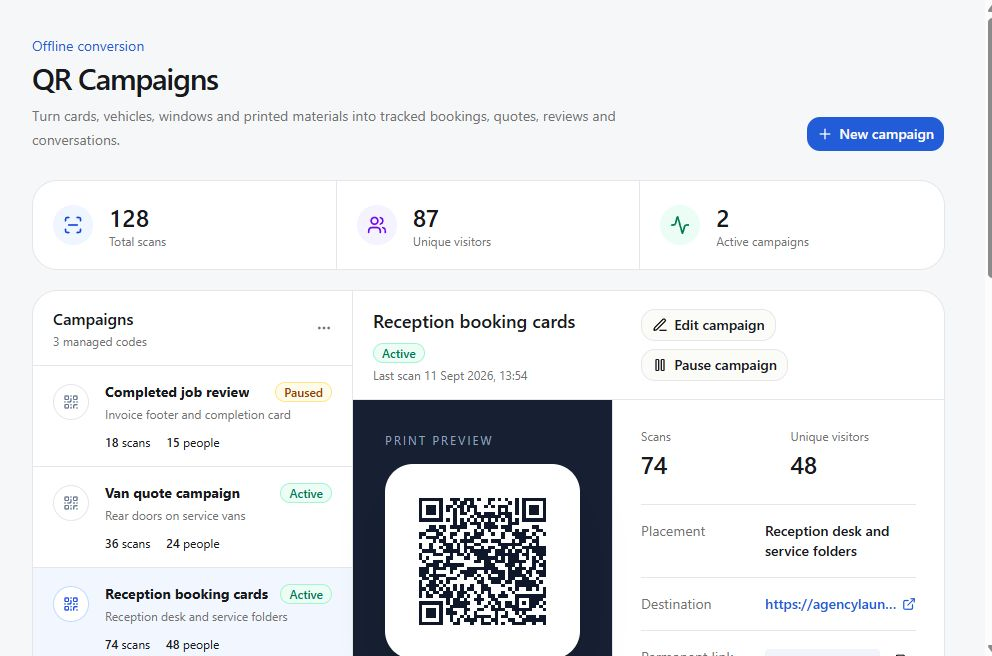
QR campaign administration
Operate permanent public codes as tenant-scoped conversion infrastructure, with safe destinations, exact counters, privacy-limited attribution, and an auditable lifecycle.
Start at: /qr-campaigns
Launch a managed campaign
- Confirm the selected business, active management grant, current plan, intended placement, and business-approved destination.
- Create a descriptive campaign name and placement. Avoid vague names that make later attribution impossible.
- Use a supported destination or a validated HTTP or HTTPS address. Never use scripts, data addresses, or unverified redirect chains.
- Inspect the rendered preview and download both SVG and PNG. Use SVG for professional print wherever possible.
- Test the public /q/<code> route and verify the expected redirect, one recorded scan, and the intended funnel event.
- Provide the approved artwork to the partner or business, with placement and minimum-size guidance.
- Recheck the physical proof on iOS and Android before a large print run.
Security and lifecycle rules
| Boundary | Required behaviour | Support check |
|---|---|---|
| Tenant | Authenticated reads, changes, previews, and downloads must resolve through the user's business or management grant. | Verify a neighbouring tenant cannot list, edit, or download the campaign. |
| Public route | Only the opaque /q/<code> redirect is public. Missing, paused, or archived codes fail safely. | Test valid, unknown, paused, and archived states. |
| Visitor privacy | Use the opaque 12-month visitor cookie plus coarse device and referrer categories. Do not store raw IP addresses, full browser signatures, or full referring addresses. | Inspect recent scan output and stored fields. |
| Retry safety | A repeated scan command with the same scan key counts once. | Confirm counters do not double increment during a retry. |
| Permanent code | The campaign code never changes. Operators change the validated destination instead of replacing printed artwork. | Verify the original code opens the new destination. |
| Archive | Pause is reversible. Archive is permanent and cannot be restored. | Require confirmation and verify the redirect no longer operates. |
Chapter 07 · Security
Identity, permissions, and support
Administer platform, partner, and business memberships without crossing tenant or ownership boundaries.
Agency client account controls
Clients at /clients gives agency owners and managers a scoped list of managed businesses. Both can manage non-owner members and invitations. Agency owners can also manage owner access, transfer ownership, and suspend or reactivate a client. A platform owner can perform these owner-level actions; platform operator access alone does not grant them.
Each account action records audit evidence. The last active owner is protected. Suspension preserves business data and memberships while blocking client access and automated activity. Reactivation restores the prior active or onboarding state and permits new activity; previously stopped work is not replayed automatically. Offboarding and deletion remain separate governance procedures.
See the client account procedures for exact controls and limits.
Membership layers
| Layer | Roles | Scope |
|---|---|---|
| Platform | Platform owner, platform operator | Platform control and explicitly authorised tenant support. |
| Partner | Partner owner, partner manager | Partner identity, team, rollups, and granted managed businesses. |
| Business | Business owner, manager, agent, analyst | One business and its permitted locations, data, and capabilities. |
Provision or revoke access
- Confirm the person's identity, employer, required tenant, and required job before selecting a role.
- Create a scoped invitation with the correct email, role, organisation, and validity.
- Verify acceptance and active membership. Revoke unused, expired, or misdirected invitations.
- When access ends, revoke the membership and active sessions. Review any owned work or scheduled tasks that need reassignment.
- Confirm the user can no longer enter the organisation or retrieve its data.
Chapter 08 · AI governance
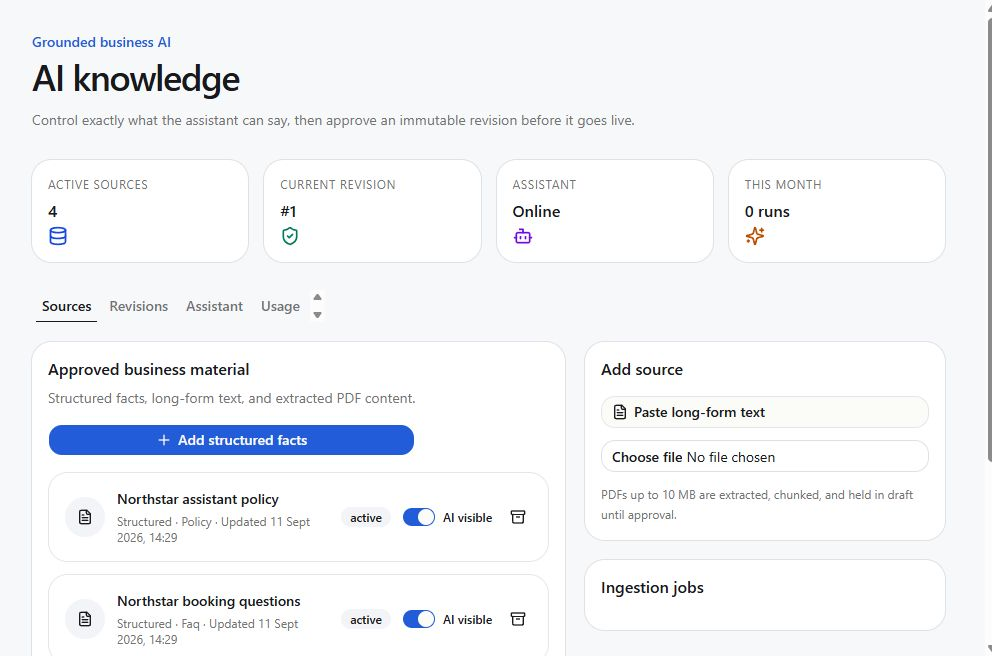
AI administration
Operate AgencyLaunch's OpenRouter-backed AI within approved model, knowledge, tool, budget, and human-control policies.
Provider readiness: a configured adapter or a demo screen does not prove live delivery. Check each business's Live connections and the platform provider configuration. AI demo, AI setup, and AI connected describe different states.
Configuration boundary
- Provider credentials belong in protected deployment configuration. The UI and this manual should expose status and masked metadata only.
- Model policy defines the primary model, fallback model, embedding model, timeouts, output limits, tool allowlist, and retry behavior.
- Business policy defines monthly usage allowance, conversation limits, approved knowledge, and enabled customer actions.
- Prompt and tool versions must remain traceable so a run can be explained after a change.
Administer a business AI profile
- Confirm provider health and the current model policy.
- Review approved knowledge and confirm that stale or superseded revisions are not active.
- Set business-appropriate tools and budgets. Disable tools the business does not support.
- Test factual answers, unsupported questions, sensitive questions, uncertainty, citations, handoff, and confirmation before enabling public use.
- Review usage, latency, failure, fallback, tool, and handoff records after release.
Chapter 09 · Google integration
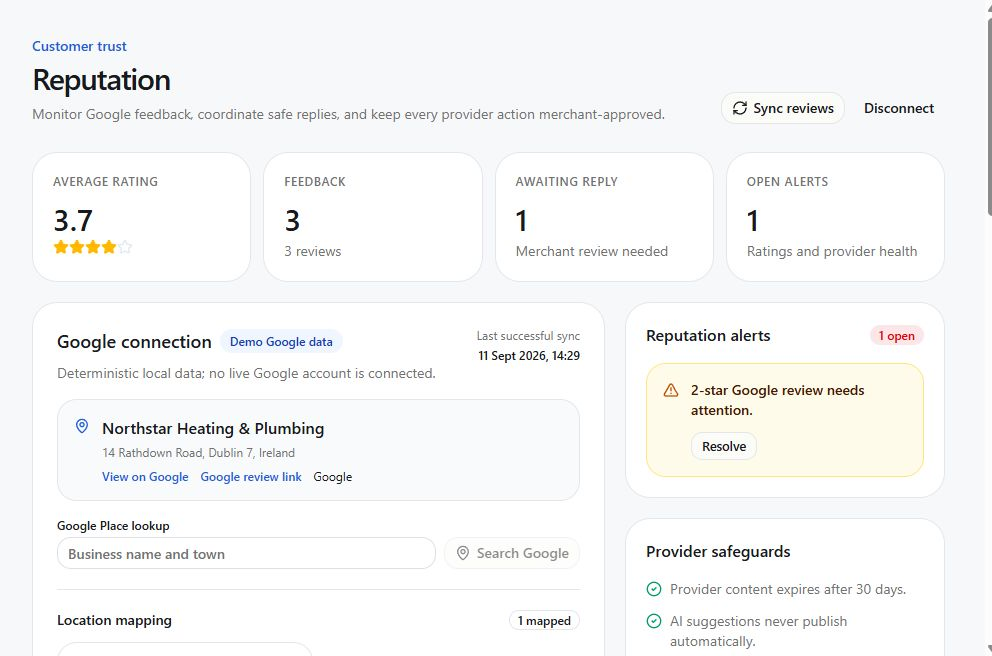
Google and reputation administration
Map the correct business location, manage connection health, and preserve the approval lifecycle for review replies and booking links.
- Use Places lookup to verify the intended real-world listing and location identity.
- Confirm Business Profile connection readiness and begin the authorised connection flow.
- Map each AgencyLaunch location to the correct provider account and location. Never infer a mapping from a similar name alone.
- Run the initial review sync and verify counts, timestamps, paging cursor, rating summary, and sample records.
- Test the draft, approval, publish, reapproval, delete, and revoke lifecycle for a reply.
- Configure booking action links only after the public booking route is live and verified.
- Monitor credential expiry, sync lease, retry history, provider errors, and reconnect state.
Chapter 10 · Scheduling control
Scheduling administration
Configure bookable services and resources with time-zone-safe availability, conflict protection, provider reconciliation, and reminder delivery.
- Confirm each location's time zone before entering recurring availability.
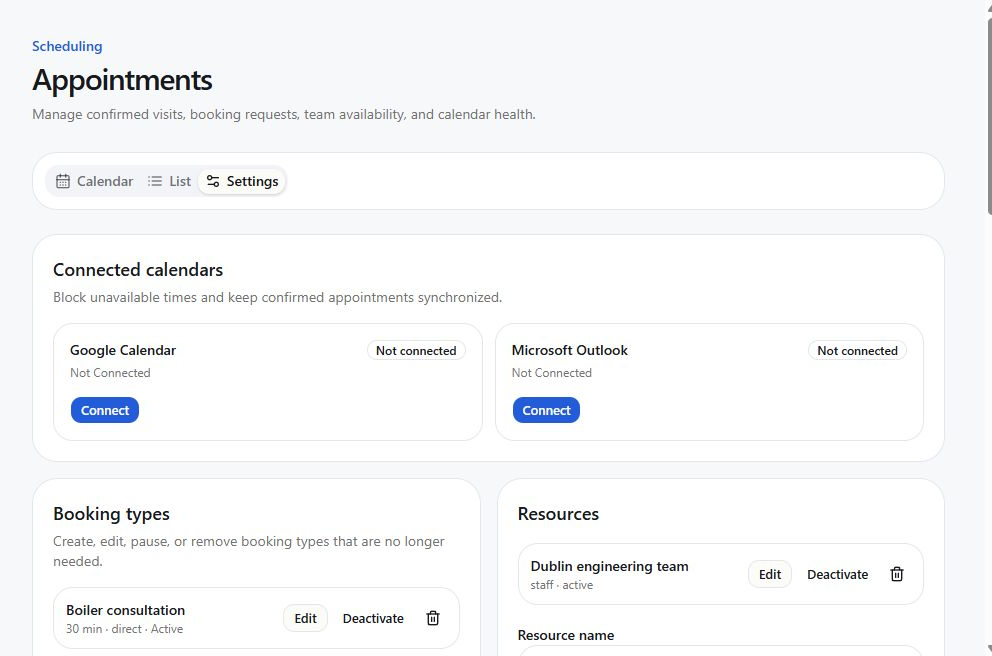
- Create appointment types with unique slugs, correct duration, direct or request mode, buffers, minimum notice, booking horizon, and slot interval.
- Create resources and eligible members. Keep inactive resources instead of reusing their identity for a different person or room.
- Add recurring rules and blackouts, then test daylight-saving changes, holidays, leave, and overnight boundaries.
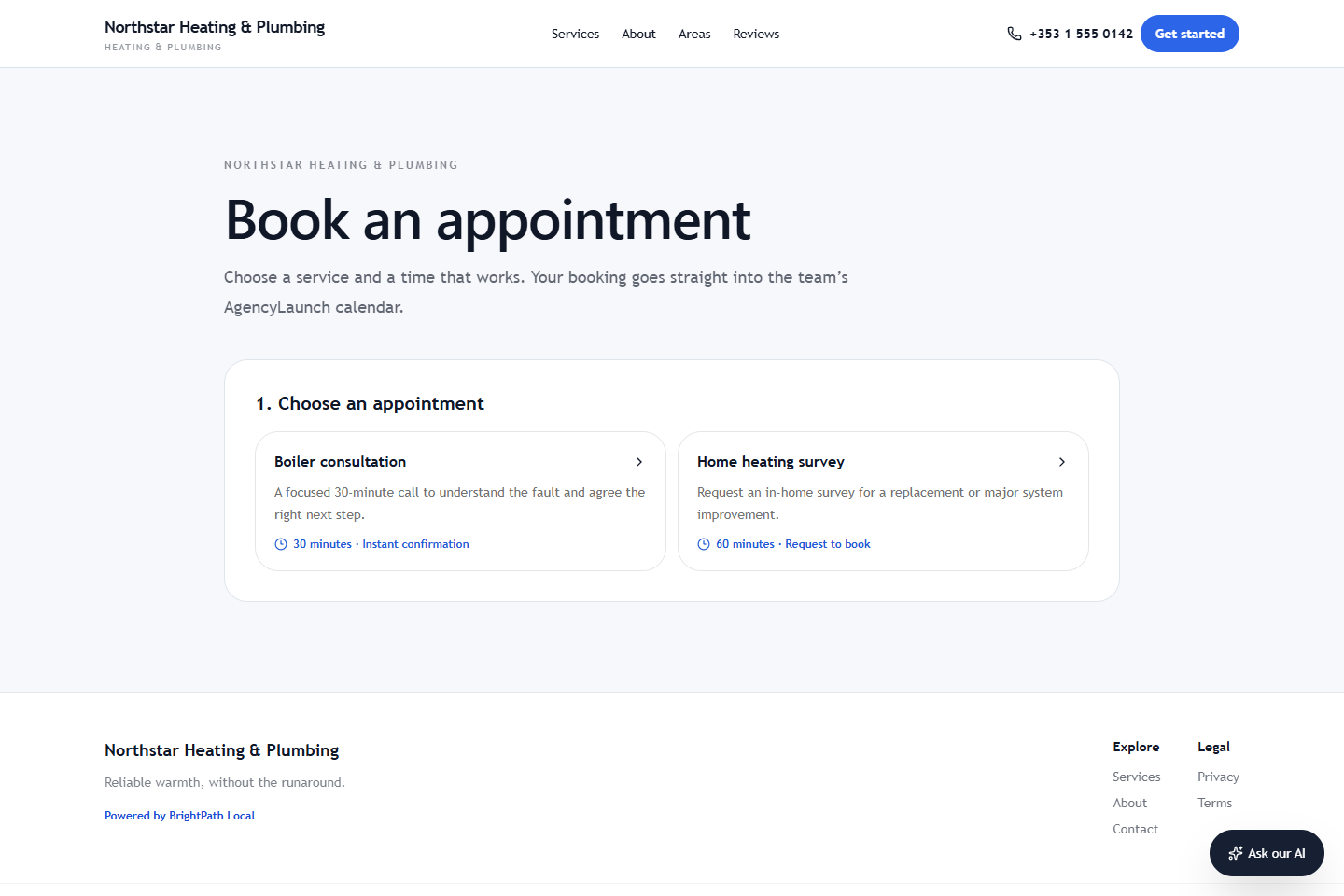
- In Booking widget, select only the appointment types intended for customers, enable online booking and copy the link or embed code.
- Use Calendar connections → Choose calendars to select the writable destination and busy calendars. Availability is business-wide. Verify both AgencyLaunch-to-provider and provider-to-AgencyLaunch health signals. Full setup and acceptance checks.
- Test holds, simultaneous booking attempts, confirmation, request approval, reschedule, cancellation, reminder, completion, and no-show.
Chapter 11 · Customer access control
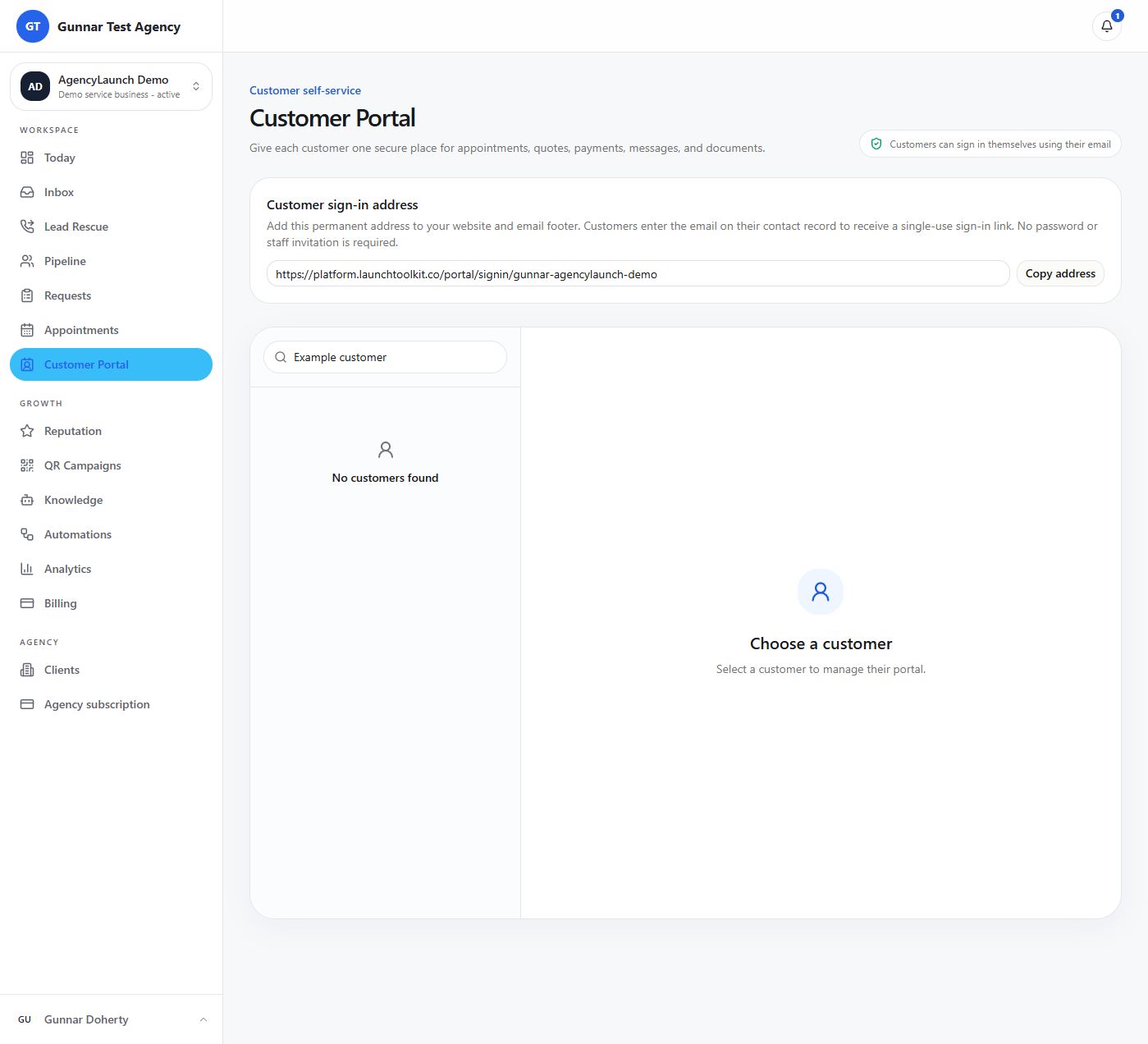
Customer Portal administration
Operate secure customer access and customer-facing records without weakening tenant boundaries or exposing private staff data.
Security model
- The browser receives a high-entropy opaque token. Convex stores only its SHA-256 hash.
- The token resolves one business and one contact. Public portal functions do not trust browser-supplied business or contact IDs.
- New and renewed links remain valid for 12 months by default. Staff can revoke access immediately at any time.
- Expired, revoked, malformed, and unknown links return the same unavailable state.
- Public views exclude token hashes, appointment management secrets, storage IDs, internal messages, staff notes, assignments, and arbitrary metadata.
- Document URLs are resolved from Convex storage when the portal is read. Card details remain with the business's hosted payment provider.
Support procedure
- Confirm the business, customer, support purpose, and staff authority before opening the Customer Portal workspace.
- Inspect access status, expiry, and last use. Do not ask the customer to send the complete portal URL through an insecure support channel.
- Renew access if the link may be exposed or has expired. Confirm the old link fails before sharing the new link.
- When investigating missing data, verify that the appointment, conversation, quote, document, or payment request belongs to the same business and contact.
- Review audit and activity records for issuance, renewal, revocation, quote decisions, portal replies, and appointment-change requests.
Current service setup and acceptance checks
Calendar selection and booking widget
In Appointments → Booking settings → Calendar connections, connect an authorised Google/Microsoft account, select Choose calendars, choose a writable Calendar for new bookings and select up to 10 calendars that block availability. The destination calendar is always included. Save calendars fetches busy times before applying the selection. Availability is business-wide; per-resource calendar mapping is not supported. The booking destination is locked after appointments have been written, so a change requires a support migration. A connected label alone is not a completed calendar test.
Provider OAuth applications must be configured before this connection can work. Calendar callbacks are separate from app sign-in. Test provider consent, calendar selection, a busy interval including a multi-day absence, booking creation, rescheduling and cancellation against a real calendar. Additional calendars refresh periodically. Widget bookings fail closed when connected-calendar coverage is stale or unavailable.
Activate the business, configure types/resources/hours, then use Booking widget to select customer-visible types and enable online booking. Copy the standalone booking link or embed code for an existing website. Instant and request-to-book modes retain their different confirmation steps. Verify that a conflicting slot cannot be confirmed and that a secure management link continues to work when new bookings are disabled. The retired website builder is not required.
Human handoff and quiet hours
A customer asking to speak to a person receives one acknowledgement, AI pauses, and an assignable follow-up task appears with the conversation in Inbox → Needs a person. Eligible agency users can own the work without a second business login. Check assignment, notification and human response; Return to AI is an explicit staff action. A callback preference creates follow-up work, not a reserved calendar time.
Lead Rescue → Rules exposes Quiet hours start and Quiet hours end in the displayed policy timezone. Overnight windows are supported; equal times disable the window. Initial rescue messages wait until quiet hours end; inbound customer replies continue. Staff notification preferences are a separate setting.
Business email sender
Open the business workspace → Email. Add the business sending domain, save From name and From email, add the displayed DKIM TXT and Return-Path CNAME, and select Check DNS until both verify. The From-address domain must match exactly. Verified business identity takes precedence for supported business delivery; system authentication email can keep the platform sender. Domain verification does not create a mailbox or configure inbound routing. Test both directions before handover. Domain replacement/removal and agency-level sender verification still require support.
Customer payments
The business supplies its existing HTTPS payment link. In Customer Portal → select customer → Payments, staff verify the full amount externally and use Record payment received with receipt date/time and transaction reference. There is no automatic provider reconciliation. Correct recording requires a reason and keeps the audit history; it does not refund money or change the provider link. Partial payments do not settle a request.
Chapter 12 · Durable follow-up
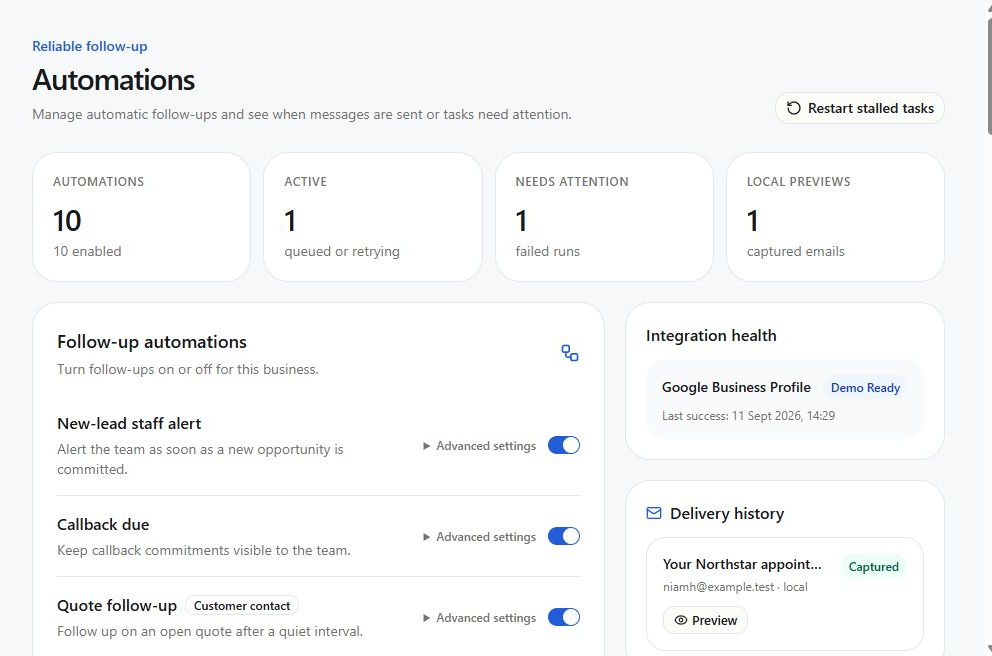
Automation and delivery administration
Operate versioned recipes and durable deliveries with bounded retries, suppression, watchdog recovery, and complete run evidence.
- Review each curated recipe's version, trigger event, conditions, steps, business eligibility, and enabled state.
- Confirm event idempotency before enabling a recipe for production traffic.
- Inspect run history by business, recipe, event, status, and time range.
- For retrying work, review the current lease, attempt count, next attempt, and provider response.
- For suppressed work, confirm the exact rule: consent, quiet hours, inactivity, invalid state, prior response, or preference.
- Use manual recovery only after resolving the cause. The recovery should create an audit entry and must not duplicate a completed external action.
- Monitor captured local email in development and the configured email provider in cloud environments.
Chapter 13 · Commercial control
Plans, billing, and usage
| Relationship | Where it is managed | Who receives payment |
|---|---|---|
| Agency pays for AgencyLaunch | Agency subscription, managed by the agency owner. | The platform owner, through the platform's Stripe account. |
| Client business pays its agency | The agency's external invoicing and payment system. | The agency, through its own external payment arrangement. |
| A customer pays the service business | Customer Portal payment request with a hosted payment link. | The recipient configured with that hosted payment provider. |
Agency owners open Agency subscription at /control/billing?scope=agency. Secure checkout requires the platform Stripe connection. The managed client's Billing screen says Billing handled by your agency.
A managed client's plan allocates features and usage limits. It does not route the agency's fees into the platform owner's Stripe account. External client payments do not automatically suspend or reactivate a client account.
Review platform subscriptions, plan entitlements, usage, and invoice evidence. Agency client fees are invoiced and collected externally by the agency.
Start at: /control/billing
- Review the plan catalogue, features, entitlements, limits, billing interval, and lifecycle state.
- Confirm the billing relationship. An agency pays the platform for its agency subscription. A managed business pays its agency externally. Direct businesses without a managing agency may retain direct platform billing.
- Create or update the billing account and subscription with explicit effective dates.
- Verify entitlements in the target workspace. A plan label alone is not proof that a capability is active.
- Review usage meters for AI, conversations, locations, users, reviews, and other metered features.
- Generate or review sample invoices and confirm totals, currency, payer, period, and line-item source.
- Use subscription controls only for the intended platform billing account. To suspend a managed client, use Clients → Suspend client; billing collection and client account status are separate operations.
Chapter 14 · Data lifecycle
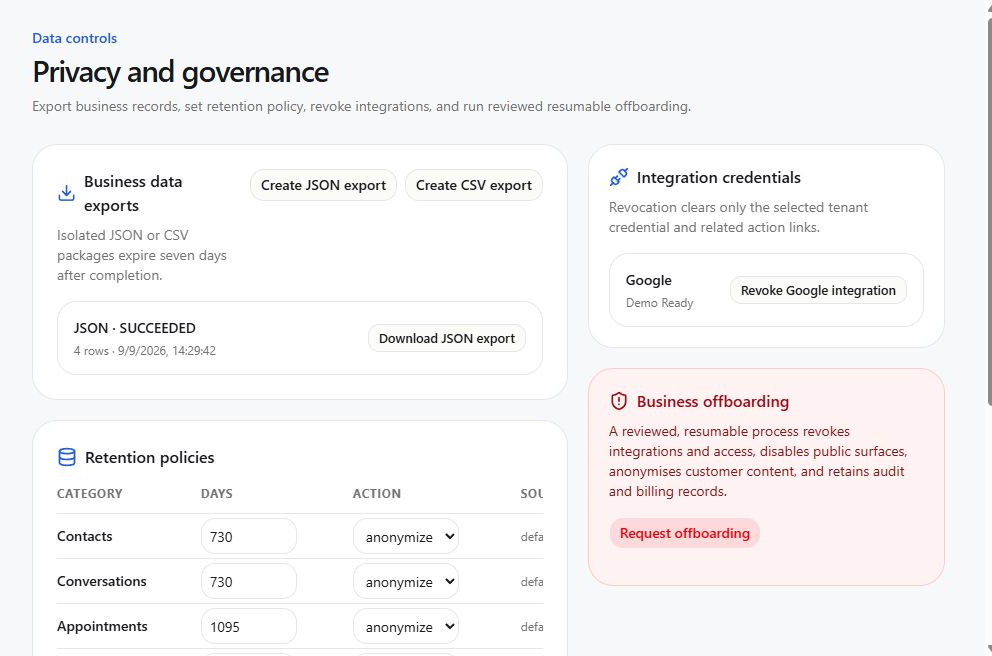
Governance and lifecycle
Handle audit, retention, exports, integration revocation, offboarding, anonymisation, and deletion as governed workflows.
Start at: /settings/privacy and scoped Control Centre records
Exports
- Confirm requester identity, authority, business, purpose, and requested scope.
- Create the export job and monitor preparation, chunking, completion, expiry, and access audit.
- Deliver through the approved secure route. Do not email raw archives or copy them into support systems.
- Confirm expiry and remove any temporary administrative copy according to policy.
Offboarding
- Confirm the authorised request, effective date, legal holds, export needs, and payer state.
- Pause customer-facing actions where appropriate and revoke provider integrations in a controlled order.
- Revoke memberships, partner grants, active sessions, domains, automation, and public access according to the approved plan.
- Run deletion or anonymisation only after required waiting, export, and approval gates are complete.
- Verify watchdog completion and retain the permitted audit evidence.
Chapter 15 · Release operations
Local and cloud operations
Run the local stack predictably, deploy the coordinated frontend and backend, verify production, and recover without mixing environments.
Local services
| Service | Local address | Purpose |
|---|---|---|
| Next.js application | http://localhost:3000 | Application, customer booking and request routes, and server routes. |
| Convex local backend | http://127.0.0.1:3210 | Local data, queries, mutations, actions, and scheduled work. |
| Convex local site endpoint | http://127.0.0.1:3211 | Backend HTTP endpoints and provider callbacks in local mode. |
Start and reset local development
- Use the repository's documented local start command so the frontend and local backend use matching configuration.
- Confirm both services are listening and open the sign-in page.
- Use the deterministic local reset command when you need the approved demo baseline. A reset replaces local demo data, so close active manual tests first.
- Sign in and verify Northstar Heating & Plumbing and Harbour Dental & Wellness before using the environment for demonstrations.
Deploy to cloud
- Review the intended GitHub branch and commit. Confirm tests, type checks, lint, production build, and browser journeys have passed for that exact state.
- Deploy the matching Convex backend and review schema, functions, scheduled jobs, environment configuration, and deployment logs.
- Deploy the Next.js application to the linked Vercel project with the matching public backend addresses and protected runtime configuration.
- Verify sign-in, Control Centre, tenant isolation, one customer request route, one booking journey, AI fallback or assisted response, and provider health.
- Activate live provider credentials only after the application is healthy. Verify callback URLs, allowed origins, mapped locations, domains, and delivery identity.
- Record the frontend deployment, backend deployment, commit, verification evidence, and rollback point.
Chapter 16 · Recovery
Administrator troubleshooting
Diagnose from scope and evidence, preserve idempotency, and escalate owner-only or provider-only work without bypassing controls.
| Symptom | Check in order | Safe recovery |
|---|---|---|
| User cannot sign in | User status, intended email, membership, invitation or reset state, session revocation, auth logs. | Issue a fresh scoped invitation or approved reset path. Do not create a duplicate identity. |
| Invitation invalid | Organisation, target role, email lock, use count, expiry, revocation, prior acceptance. | Revoke the bad invitation and create a new scoped one. |
| Tenant not visible | Platform, partner, and business memberships; grant state; location access; lifecycle status. | Correct the missing relationship, then verify a neighbouring tenant remains hidden. |
| Business readiness blocked | Business facts, customer routes, services, scheduling, permissions, knowledge, consent, and provider checks. | Fix the source configuration, rerun readiness checks, and obtain the required approval. |
| Provider activation failed | Connection state, credential generation, capability, callback route, sender or location mapping, and backend logs. | Correct the failed check and retry only if the operation is idempotent. |
| AI degraded | Provider status, model policy, approved knowledge, usage budget, timeout, fallback, tool result. | Keep handoff active, fix provider or policy, then test with a non-sensitive prompt. |
| Google reconnect required | Credential generation, mapped account and location, expiry, last sync, provider error. | Run the authorised reconnect and verify stale queued commands cannot publish. |
| Booking mismatch | Time zone, type, resource, member, rules, blackouts, holds, provider mapping, reconciliation. | Reconcile from durable appointment evidence and avoid creating a second booking. |
| Automation retrying | Event identity, lease, attempts, next retry, provider response, suppression, prior external result. | Allow bounded retry or recover once after fixing the cause. |
| Export stalled | Job state, lease, chunk progress, worker logs, data volume, expiry. | Use watchdog or idempotent recovery and verify no duplicate archive is exposed. |
| Offboarding waiting | Approval, effective date, export, hold, provider revocation, retention gate, watchdog. | Complete the missing gate. Do not force deletion past it. |
| Deployment failed | Exact commit, build logs, environment target, backend compatibility, runtime logs, health routes. | Fix forward when safe or restore the last compatible frontend and backend pair. |
Chapter 17 · Operational reference
Administrator checklists
Daily health
- Control Centre health and audit
- AI, Google, email, calendar, domain, and automation providers
- Failed or exhausted deliveries
- Stalled exports and offboarding jobs
- Unexpected membership or grant changes
New business
- Ownership and management model
- Plan, payer, and entitlements
- Location, services, time zone, and contacts
- Agency management access or optional owner invitation, with a least-privilege team
- QR campaigns, knowledge, requests, booking, and provider QA
Production release
- Exact commit verified
- Automated checks and browser journeys passed
- Compatible backend deployed
- Frontend deployed with correct environment
- Tenant, public funnel, provider health, and rollback verified
Access review
- Platform owners and operators
- Partner owners and managers
- Business owners, managers, agents, and analysts
- Management grants and support sessions
- Revoked users and active sessions
Incident close
- Customer impact ended
- Data integrity verified
- Retries and queues healthy
- Temporary access removed
- Audit, timeline, cause, and follow-up recorded
Offboarding close
- Authority and effective date verified
- Required export delivered securely
- Domains, providers, sessions, grants, and automation revoked
- Retention and deletion gates complete
- Permitted evidence retained