
Partner setup guide · Checked against AgencyLaunch and Twilio documentation on 21 September 2026
Set up calls, SMS and Lead Rescue with Twilio
Following Start Here? Open Part 1 → Set up calls and texts. Create and connect your agency Twilio account using the steps below. You do not need a client yet. Already connected? Go to Part 2: Try it with a business. Add your own business for practice or add a client, then select it. Under Choose what to try, pick Calls, SMS & missed-call rescue. Open Set up those services to choose the business number and forwarding phone. Finish with Check that it works. Connecting the agency account does not complete these business steps. WhatsApp is optional and has separate approval steps.
Connect your agency's own Twilio account, give a client a business number, forward calls to their team, and follow up on missed calls. Work through this guide for your first client, then repeat the business-specific steps for each additional client.
A customer calls the business number. AgencyLaunch rings the team's forwarding phone. If the call is missed and rescue is enabled, AgencyLaunch can send a follow-up message. Replies appear in the business's Inbox, where staff or permitted AI can continue the conversation.
This is call forwarding and messaging. An AI agent answering the voice call is not part of this setup. WhatsApp is optional and has its own setup.
1. Before you start
You need an AgencyLaunch agency-owner login, your own Twilio account with billing enabled, and a separate client business in AgencyLaunch. Create or select that business under Clients. If you are the only operator, you can manage the business with your agency login. You do not need to invite yourself again.
Twilio bills your agency directly for number rental, calls, messages and applicable registration fees. Agree with the client how you charge for these. AgencyLaunch does not automatically recharge their usage or collect these client fees.
Keep these three roles separate:
- Business number: the Twilio number customers call and text. AgencyLaunch connects it to this client.
- Forwarding phone: the team's existing mobile or landline that rings when customers call the business number. Use an SMS-capable mobile for the initial SMS test.
- Test customer phone: a different number and calling endpoint used to act as the customer. It must receive and send SMS for a two-way test.
For example, you can test a US Twilio business number with an Irish forwarding mobile and a Canadian test customer. That requires the appropriate Irish voice/SMS and Canadian SMS destination permissions. It does not prove that messaging to US customers is registered or working.
Have the client's correct timezone, opening hours, service information and consent arrangements ready. Use your own or an explicitly agreed test contact, not an unsuspecting customer.
2. Create and connect your Twilio account
- Create an account through Twilio signup, verify the details requested, and add billing/funds. You need phone numbers, Programmable Voice and Programmable Messaging for this flow. You do not need to purchase a separate Flex, Verify or SendGrid product for AgencyLaunch Lead Rescue.
- Use an upgraded account for a client launch. Trial accounts have restrictions, including verified-recipient restrictions; adding credit does not remove separate messaging-registration requirements. See Twilio's trial limitations.
- In Twilio, select the account that will own the client numbers. Find Account Info on its dashboard and copy the Account SID, beginning
AC. Reveal/copy its Auth Token. If you are on the API keys screen, use the Auth tokens tab instead. See Twilio's account credential instructions. - In AgencyLaunch, open Partner branding and select the correct agency if you manage several. Open Phone & messaging.
- Enter Account SID and Auth Token, then select Connect Twilio. Wait for the connection result. After saving, the token stays hidden and the field indicates that a token is saved securely.
The current connector accepts an Account SID plus Auth Token. An API key SID beginning SK and its secret are not interchangeable with these fields. You do not need to create a Restricted API key or choose its permissions for this connector.
Use the account's US1 credentials for the current AgencyLaunch integration, even if your business is in Ireland. Twilio's API region is separate from the country of a phone number. Credentials are region-specific.
Save the token only in the connection form. Do not put it in email, a support screenshot, this guide or a client note. Connect the agency parent account, not a client subaccount. Each agency connects its own account; the platform owner's shared AI key is unrelated.
3. Choose and obtain the business number
For the current AgencyLaunch phone/SMS integration, choose a number with both Voice and SMS capabilities. MMS is not required. WhatsApp approval is separate. Checking Voice and SMS in a search does not add those capabilities to a number: inspect the actual result and purchase summary.
Availability varies by country and number type. An Irish local number shown as Voice only will not provide this combined flow. Twilio's Ireland guidance distinguishes domestic and international SMS routes; international delivery and replies must be tested with the customer's carrier. Living in Ireland does not exempt a number from registration. See Twilio's Ireland SMS guidance.
Create the client's account, then choose its number
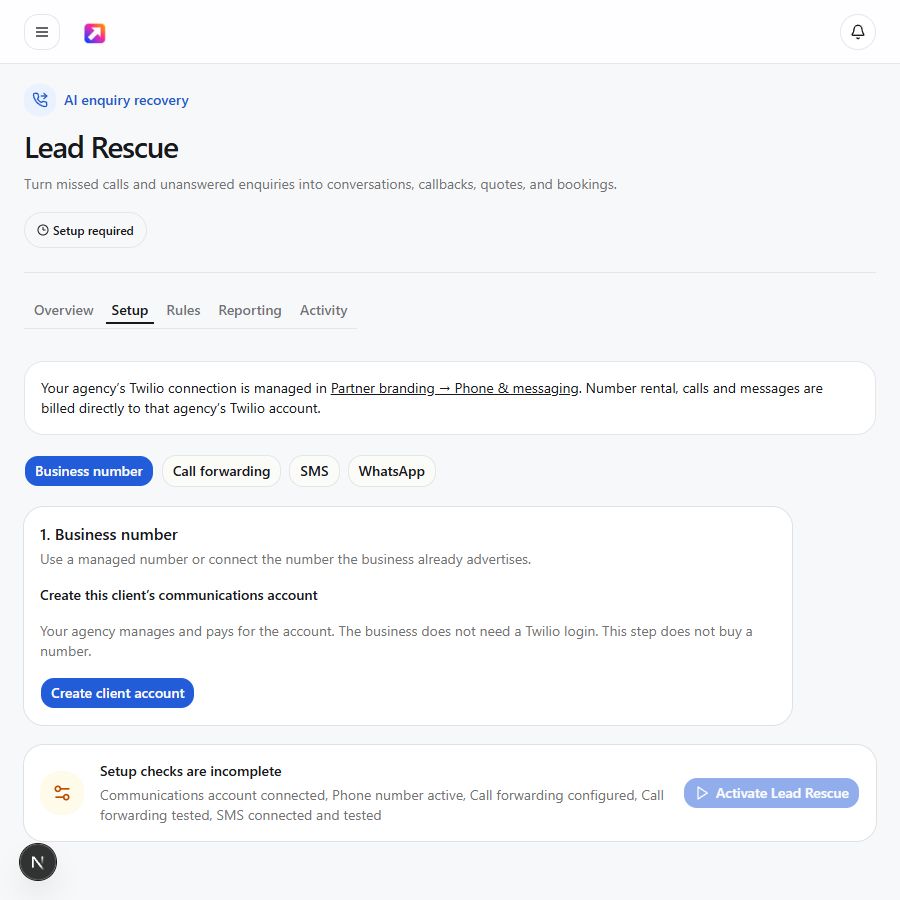
- Select Clients → Set up phone & WhatsApp, or select the business and open Lead Rescue → Setup → Business number.
- Select Create client account. AgencyLaunch creates a separate Twilio subaccount under your agency's connected parent account. This does not buy a number. The business does not need a Twilio login or API keys.
- Choose Number country, then Find numbers. Check the actual number, currency and monthly rental. Usage and applicable taxes are additional. Offers expire after five minutes.
- Select Buy for …/month when you accept the displayed charge. AgencyLaunch purchases that exact number in this client's subaccount and configures Voice/SMS routing.
- If the result is uncertain, select Check purchase. Do not buy a replacement. AgencyLaunch checks for the original purchase and will not automatically purchase twice after an uncertain response. Contact support if reconciliation remains unresolved.
The search covers local numbers supporting both Voice and SMS. Address or regulatory requirements block self-service purchase; unknown requirements are also blocked. This does not waive separate SMS campaign registration. If suitable inventory is unavailable, ask support about another number type.
If you need to buy in Twilio
First create the client account in AgencyLaunch. Select that client's subaccount in Twilio and confirm its identity before buying there. Do not buy a new client's number in the agency parent account. Existing parent-account numbers stay connected; moving them is a support-assisted migration.
If you already purchased a suitable number, do not buy another. Go to Connect an existing number.
- In the current Twilio Console, open Products & Services → Numbers & Senders → Phone Numbers, then Set up a new phone number. If your console layout differs, use its search for Phone Numbers and follow Twilio's current number setup guide.
- Choose the intended country and capabilities. Clear any old digits/prefix filter, search, and inspect a result that explicitly lists both Voice and SMS.
- Review the chosen number, recurring charge and any address or registration requirements before selecting Purchase.
- If the wizard then asks you to choose Messaging or Voice, it is choosing which setup checklist to follow next. It does not turn a dual-capability number into a single-capability number. Complete the requirements for both uses.
- Keep the full phone number and its Phone Number SID beginning
PNfor support.
For current charges, use Twilio pricing. A number's monthly fee is not an inclusive allowance for calls or messages.
4. Complete the applicable registration
Purchasing a number and being allowed to send every kind of message are different steps. “Active” in AgencyLaunch means the number is connected; it is not proof of carrier registration or successful delivery.
- US local numbers sending application SMS to US recipients: complete A2P 10DLC registration. Follow Twilio's process for the relevant business brand and campaign, and associate the sending number with the approved campaign's Messaging Service. Use the actual client's business and messaging purpose; do not assume one generic agency registration covers unrelated clients. See A2P 10DLC setup.
- US/Canada toll-free messaging: complete toll-free verification. Unverified or pending verification is not a shortcut for live messaging. See toll-free verification requirements.
- Other countries and number types: provide the local address, identity or business documents Twilio requests. Eligibility and SMS capability vary; resolve requirements before promising the client a particular number.
Registration is not reliably instant. Wait for the required approvals and number association to finish. A successful test to Canada or Ireland does not establish US-bound SMS readiness. Check the current status in Twilio rather than treating a submitted form as approval.
A2P registration does not itself configure AgencyLaunch's inbound routing. If you add the number to a Messaging Service, check its inbound setting in step 7.
5. Enable the countries you will contact
Twilio has separate destination permissions for messaging and voice. Select the client subaccount that owns the number and check its permissions. Existing clients still using the agency parent account need the settings there instead. A setting on a different account does not prove this client is enabled.
- For SMS, open Messaging → Settings → Geo Permissions and enable the countries where your recipients are located. An Irish forwarding mobile used for Test SMS needs Ireland enabled; a Canadian test number needs Canada enabled. Twilio SMS geo permissions.
- For forwarding, open Voice → Settings → Geo permissions, enable the permitted destination category for the team's phone, and save. A US business number forwarding to an Irish mobile needs voice permission for Ireland. Twilio's Phone Number Permission Check can check a specific destination. Twilio voice geo permissions.
Enable the destinations the business needs, not every country. Both the US and Canada use +1; the prefix alone does not mean their country settings are the same. Country permissions do not replace registration, adequate balance or carrier support.
6. Connect a number you already bought
- Open the client's Lead Rescue → Setup → Business number. Create its client account first if needed.
- Select Use owned number. This lists eligible Voice/SMS numbers in this client's subaccount.
- Check the full number, then select Connect this number. AgencyLaunch verifies ownership, configures routing and attaches the number to the client.
Transfers and existing phone-system changes remain support-assisted. Numbers in the agency parent account or another client's subaccount are not eligible. Contact support with the details below before moving them.
- Agency name and your AgencyLaunch login email.
- Client business name and its AgencyLaunch workspace URL.
- Twilio phone number in full international format.
- Phone Number SID beginning
PN, from that number's details in Twilio. - Whether another app, Messaging Service, TwiML application or SIP trunk already uses this number.
Do not include the Auth Token. It should already be saved in Partner branding.
Support checks that the number belongs to the connected account, supports Voice and SMS, and is not assigned to another business. Import configures AgencyLaunch routing and attaches the number to the selected client. Existing application or SIP-trunk bindings need a planned migration; do not overwrite a working phone system without agreeing the change.
A Hushed number or the client's Vodafone mobile is not a Twilio-owned number to import. Those can be test/forwarding endpoints. Porting an existing business number is a separate provider process.
7. Check routing and webhook addresses
A webhook tells Twilio where to send an incoming call or message. AgencyLaunch sets the number's incoming Voice and SMS webhooks when it provisions or imports the number. These are the exact production addresses for this AgencyLaunch service; a partner's custom portal hostname does not replace them.
Incoming phone call
On the number's Voice configuration, set the incoming-call handler to Webhook, method HTTP POST:
https://astute-flamingo-262.convex.site/twilio/voice
Incoming SMS
On the number's Messaging configuration, set the incoming-message handler to Webhook, method HTTP POST:
https://astute-flamingo-262.convex.site/twilio/messages/inbound
If the number belongs to a Messaging Service: check that service's Integration/incoming-message handling. Select Defer to sender's webhook so it uses the number's URL, or configure the same incoming-message URL with POST at service level. A service-level handler can otherwise prevent messages reaching AgencyLaunch even when the number screen looks correct. See Messaging Service inbound handling.
Callbacks supplied automatically by AgencyLaunch
Message delivery updates use the following POST callback, supplied when AgencyLaunch sends each message:
https://astute-flamingo-262.convex.site/twilio/messages/status
Forwarded-call outcomes use this POST address through AgencyLaunch's returned call instructions:
https://astute-flamingo-262.convex.site/twilio/calls/status
You do not need to build a Twilio Studio flow. Leave the number-level Voice status callback blank for this setup: the forwarding outcome is handled by the call instructions. Do not paste a messaging-status URL into the voice settings, or a status URL into the incoming-message field. Save any manual changes.
Incoming callbacks are authenticated with the connected account's Auth Token. A token changed only in Twilio can break incoming calls/messages as well as outgoing requests; follow token rotation.
8. Set where the client's calls ring
- In the correct business, open Lead Rescue → Setup → Call forwarding.
- In Forward calls to, enter the team's phone in international format. For an Irish mobile, replace the initial
0with+353; do not keep both. Do not enter the Twilio business number itself. - Set Forwarding destination label to something recognisable, such as Main team, then select Save.
- Select Verify routing and wait for its result.
Verify routing checks/configures Twilio routing. It does not place a call to the phone. You must still run the real answered and unanswered tests below.
The current forwarding form uses a 20-second timeout. If mobile voicemail answers first, Twilio can see that as an answered call, so missed-call rescue may not start. Test with the client's actual voicemail settings. Do not create a loop by forwarding the team's phone back to the same Twilio number.
Use a separate calling endpoint for the test. Calling through an app on the same physical phone that should receive the forwarded mobile call can interrupt the app call. Use another person's agreed test phone or a compatible calling app on a computer, while the team's mobile receives the call.
9. Choose how Lead Rescue responds
- Open Lead Rescue → Rules. Enable Rescue missed enquiries when ready to test the automated flow.
- Choose the channels the business has actually connected. Start with SMS. Add WhatsApp only after completing its separate setup.
- Choose AI autonomy: Automatic for safe enquiries, Draft every reply for approval, or Human replies only. The strictest platform, agency, business or conversation rule still applies.
- Set Quiet hours start and Quiet hours end, checking the displayed business timezone. For example, 20:00 to 08:00 delays initial rescue outreach until morning. Replies to incoming customer messages continue. Equal start/end times disable this quiet-hours window.
- Select Save rules. Complete the Setup checks, including Test SMS below, then select Activate Lead Rescue when available.
The readiness checklist checks setup requirements; it does not prove real delivery. A connected Twilio account also does not configure AI. Add the client's approved services, opening hours and FAQs in Knowledge, and resolve any AI/provider error before promising automatic responses. In approval mode, a reply may wait for staff rather than send itself.
Business activation and Lead Rescue activation are separate. Keep the client business operational, and check that it is not suspended. Staff notification quiet hours are also separate from these customer-outreach hours.
10. Test the complete customer journey
These tests create real calls/messages and use the agency's Twilio balance. Use agreed test contacts. Write down each result, the time and the phone numbers involved. Test every recipient country you plan to support.
A. Outbound SMS and the customer's reply
- Open Lead Rescue → Setup → SMS and select Test SMS. It sends a real message to the primary forwarding phone saved in step 8. This button does not ask for a different recipient.
- Check that phone for the message. A successful app test means Twilio accepted the request; it does not establish that the handset received it. Check the final delivery status in Twilio if it does not arrive.
- Reply from the phone with a unique message, such as “Setup test: please tell me your opening hours.” Open the same business's Inbox and confirm the incoming text appears.
- Send a staff reply from Inbox and confirm it arrives on the test phone. If testing AI, use the selected autonomy mode and confirm the response is accurate for this client's Knowledge.
To test a different customer number, send an agreed test message from that number to the Twilio business number, then reply in AgencyLaunch Inbox. This checks both directions for that route without changing the client's forwarding phone.
B. Answered call
- From the separate test customer endpoint, dial the Twilio business number in full international format.
- Confirm the team's forwarding phone rings, answer it, and check speech in both directions.
- End the call. Inspect Lead Rescue → Activity and Twilio's call record. Confirm the answered outcome; an answered call should not be treated as a missed call to rescue.
C. Unanswered call and automatic rescue
- Activate Lead Rescue and confirm rescue is enabled. Run the test outside the configured quiet hours. Use a test customer who can receive SMS and has not opted out.
- Call the business number again and let the forwarding attempt finish unanswered. Do not answer on the team phone or let voicemail pick up. Hanging up immediately is not a reliable missed-call test.
- Check the missed outcome and rescue activity. Confirm the follow-up reaches the customer who called, not the forwarding phone.
- Reply to the follow-up, then confirm that reply appears in the right business's Inbox. Verify either the automatic response or the draft awaiting approval, according to the rules.
Repeated attempts from the same number can be limited by cooldown, deduplication or frequency controls. An opted-out customer must not be used to prove ordinary delivery. If no new message is sent, inspect the activity and policy result before repeatedly calling.
D. Staff handoff and follow-up
Send an agreed test reply asking to speak to a person. Check Needs a person in Inbox and the resulting follow-up request. Assign it to the responsible operator, contact the customer and complete the task. A request for “a callback tomorrow at 2pm” is a preference for staff to handle, not a reserved calendar slot or a guaranteed callback. Appointment bookings use the separate booking/availability flow.
Passed means: the intended phone rang, the intended customer received messages, incoming replies reached the correct Inbox, staff could respond, and follow-up ownership was clear. Save the actual results before handing the client a live number.
11. Optional: connect WhatsApp
WhatsApp is optional. Start with voice and SMS if WhatsApp approval is pending. The agency manages the service and pays Twilio. The business owner authorises their own Meta business; they do not sign up for Twilio.
Check availability before promising WhatsApp
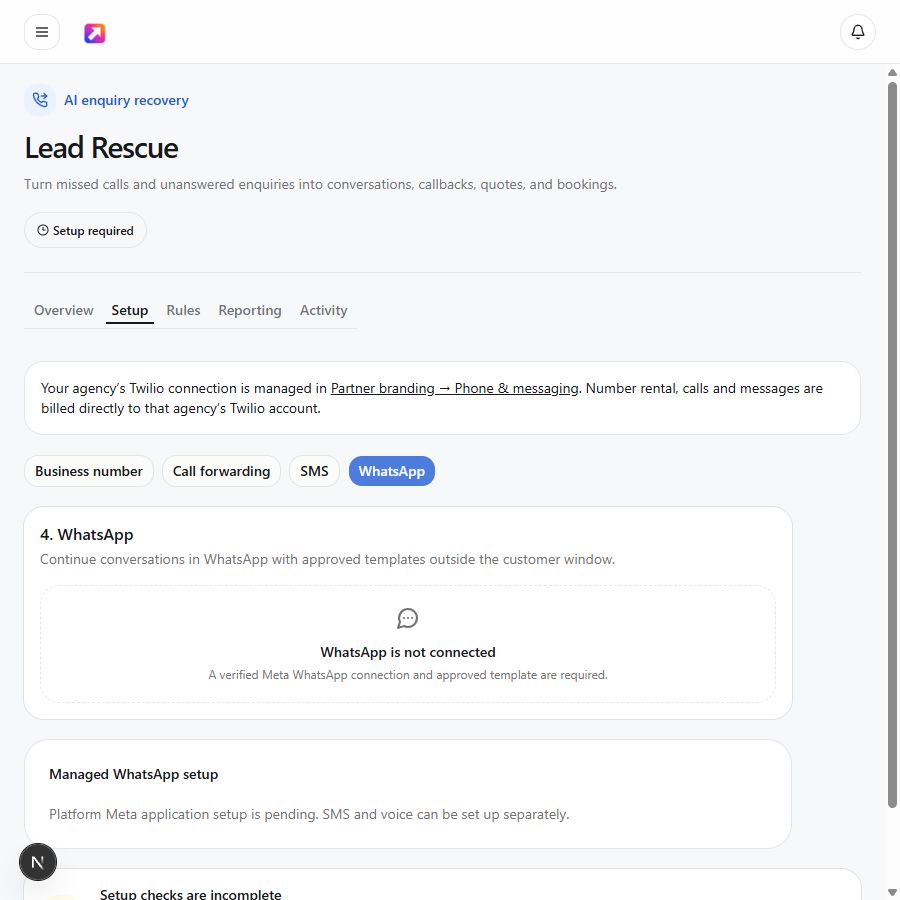
Open Lead Rescue → Setup → WhatsApp. Managed onboarding is available only after AgencyLaunch and your agency's Twilio account have the required Meta/Twilio provider arrangement. If provider approval is pending, contact AgencyLaunch support. Creating a subaccount or connecting a sandbox does not remove that gate. Each client subaccount keeps its WhatsApp Business Account (WABA) separate. See Twilio's Tech Provider requirements.
Agency: prepare the client and send the consent link
- Connect the client's Voice/SMS number using steps 3–6.
- In Managed WhatsApp setup, select Create business-owner consent link. Share it privately with the person authorised to manage the client's Meta Business Portfolio. It expires in 24 hours. Creating a replacement revokes the earlier link; Revoke link cancels it.
- The owner needs their Facebook login, real business details, website and permission to manage the correct Meta portfolio. Use the displayed client number. Migrating an existing WhatsApp number requires the provider's migration procedure; do not disconnect it casually.
Business owner: authorise through Meta
- Open the private link and select Review business details. Check the business name and phone number.
- Select Continue with Facebook. Sign in with the authorised account, select the correct business portfolio, WABA and displayed number, and review Meta's requested permissions and verification requirements.
- If Meta requests an SMS code, keep its window open and use Check verification SMS on the AgencyLaunch page. Enter the code only into Meta. If it remains unavailable, ask your agency to check provider OTP access; do not substitute a personal number.
- Complete Meta's steps. AgencyLaunch confirms submission, but registration and delivery must still be checked before customer messaging. Ask your agency for a replacement if the link expired or was revoked.
Agency: registration, template and two-way test
- Return to Managed WhatsApp setup and select Refresh registration. Awaiting approval means provider review remains pending. AgencyLaunch registers the sender in the client's subaccount and configures inbound/status webhooks.
- When registered, select Load / refresh templates. Choose an approved plain-text template from this client account, or expand Create a plain text template, enter the name and wording, and select Submit for approval. The form submits English utility templates. Fixed wording or
{{1}}for the business name is supported. Generic appointment-confirmation buttons are not added. - Refresh until approval is confirmed. If rejected, read the reason and submit corrected wording. Submission is not approval.
- Enter an Opted-in WhatsApp test recipient in international format and select Send verification message. This is a real billable message; use an agreed test number you control.
- Confirm receipt on that phone and reply from the same WhatsApp number. Check the correct business Inbox. Managed WhatsApp stays pending until AgencyLaunch records both delivery and an inbound reply for the current verification attempt. Registering the sender or accepting a send request is insufficient.
- Send a staff reply in Inbox and confirm receipt. Then enable WhatsApp under Rules, save and complete remaining activation checks.
Outside the 24-hour customer service window after a customer's message, business messages require an approved template. A missed voice call alone is not WhatsApp opt-in. Follow Twilio's template rules.
Existing agency-account connections and sandbox tests
Working parent-account connections keep their original binding. Their legacy Connect live WhatsApp form accepts the sender, display name, Content SID, exact approved wording and test recipient. Configure incoming POST to https://astute-flamingo-262.convex.site/twilio/messages/inbound and status POST to https://astute-flamingo-262.convex.site/twilio/messages/status. Check handset receipt and an Inbox reply even if that legacy connection says active. Contact support before migrating to a managed child account.
Sandbox: test first without treating it as a launch
- Open Twilio's Try WhatsApp sandbox. Use the sender number and join code displayed in your own account; do not copy another agency's join code.
- Each tester sends exactly
join your-codefrom WhatsApp to that sandbox number, with no extra spaces around a hyphen. Wait for the explicit confirmation that the sandbox can send and receive messages. An echo beginning “You said” is not that confirmation. - In Sandbox settings, set When a message comes in to the inbound URL above, method POST, and Status callback URL to the status URL above. Save. This sandbox handler is separate from the voice/SMS number's settings.
- Use a clearly labelled demo client in AgencyLaunch. Enter the sandbox sender and an available preapproved sandbox Content SID from Twilio, its exact template preview and the joined tester's number. The verification sends a real message and can incur provider charges.
- A sandbox sample appointment reminder contains example details; it does not create or confirm an AgencyLaunch booking. Tell the tester it is a delivery test. Send an ordinary enquiry such as “Can you tell me about your services?” to test the actual Inbox/AI flow.
- Check both directions. If Twilio accepts the send but the phone never receives it, inspect the message log and error code. If the phone gets a default echo, correct the inbound handler. If the participant's session expires, rejoin following the sandbox page. See sandbox limits and current instructions.
Before customer rollout: replace the sandbox sender/template with the approved production details and repeat delivery and reply checks. Customer opt-in is required for business-initiated messaging; a missed voice call alone is not WhatsApp consent. Use approved templates outside the customer service window. Provider connection status does not establish consent or approve a sender.
12. Troubleshooting
Start with the correct Twilio account and the time of the attempt. Find Messaging logs or Call logs using the Console search if your navigation differs. Open the individual record for its status, error code and request details. Then compare it with AgencyLaunch Lead Rescue → Activity and Inbox.
Purchase failed, or only Voice numbers are available
Check Twilio's owned-number inventory before retrying: a number may have been bought even if a later wizard step failed. Check balance, address/document requirements and inventory. Clear old search digits. Do not purchase a Voice-only result expecting SMS to appear later. Ask AgencyLaunch support to assess a supported number/country before making repeated purchases.
Connection fails, or calls/messages stop after changing a token
Check the selected Twilio account, the AC Account SID, live Auth Token and US1 region. An SK API key is the wrong credential type for this form. Update the saved token for the same account in Partner branding. If the account itself needs changing, request a migration instead of replacing number bindings.
Outbound SMS is accepted but not delivered
Open its Twilio message record. Queued/sent/accepted is not the same as delivered. Check the recipient number, balance, destination-country permission and required registration. Error 21408 concerns destination messaging permissions; 30034 concerns unregistered US-bound A2P traffic; 30007 indicates filtering. Follow the exact recorded error, not a guessed carrier problem.
The customer says they replied, but there is no message in Twilio
Confirm the customer replied to the full Twilio business number, and check the correct account, time range and inbound logs. A coloured message bubble is not delivery proof. If Twilio has no incoming record, check whether the customer's app reports failure and whether that calling/texting plan supports the destination. Try an independent supported test route. Changing AgencyLaunch's AI settings cannot recover a message that never reached Twilio.
Twilio has the incoming SMS, but AgencyLaunch Inbox does not
Check that the number is assigned to the intended client. Inspect the inbound webhook request and response, including any Messaging Service override. Confirm the exact inbound URL and POST method from step 7. Error 11200 is an HTTP retrieval failure; provide its request details to support. Do not disable signature checks as a workaround.
The business number rings or beeps, but the team phone never rings
Check the saved forwarding phone and international format. In Twilio, inspect both the incoming call and the outbound forwarded call. Error 21215 points to voice destination permissions. Also check balance, trial restrictions, phone blocking/Do Not Disturb and whether your test app is on the same physical phone receiving the forwarded call.
The call was missed, but there was no rescue message
Check the actual forwarded-call outcome: voicemail can count as answered. Confirm the business and Lead Rescue are active, Rescue missed enquiries is enabled, a usable channel is selected, quiet hours have ended, and the caller has not opted out. Review activity for cooldown, frequency limits or an approval/policy decision. The caller needs a valid reachable messaging number; withheld caller ID or a non-SMS landline cannot receive ordinary SMS rescue.
The reply appears in Inbox but AI does not respond, or responds badly
Review AI autonomy, pending drafts, human takeover and the client's Knowledge. The strictest policy wins, and a conversation needing a person should stop automatic replies. A valid Twilio connection cannot fix a missing or rejected platform AI key. Ask support to inspect provider errors; do not send your own unrelated AI credentials to the client.
WhatsApp works in one direction only
Check sender approval, opted-in test recipient, approved Content SID and variable values. Confirm the sender/service inbound webhook and the 24-hour window/template requirements. A successful outbound template alone does not verify inbound delivery.
What to send support
Provide agency/client names, the workspace URL, affected channel, expected result, actual result, exact attempt time with timezone, relevant phone numbers, and Twilio's Message SID or Call SID plus error code. Include a screenshot with tokens and unrelated customer information hidden. State whether Twilio recorded the inbound event and whether the recipient actually received anything.
13. Handover and ongoing management
- Client handover: record the business number, forwarding destination, supported countries, approved channels, response mode, quiet hours/timezone and named person responsible for the Inbox and callback requests. Keep the answered-call, missed-call and two-way-message test results.
- Usage and billing: monitor Twilio balance, usage and spending controls. Forwarding involves an incoming call and an outgoing leg, so check both rates. Messages may be billed in multiple segments. Agree client charges outside AgencyLaunch.
- Token rotation: coordinate the change, then open Partner branding → Phone & messaging, enter the new Auth Token for the same Account SID and select Update token. Retest incoming/outgoing messaging and calls after rotation.
- Disconnect: disconnecting in AgencyLaunch stops its use of that agency connection. It does not release rented numbers or stop Twilio rental charges. Review and release unwanted numbers in Twilio only after agreeing the impact with the client.
- Move a client or change Twilio accounts: contact support for an explicit number/account migration. Do not assume moving a business between agencies moves its Twilio assets or registration.
Only describe the channels and destinations you have actually configured and tested as live. Record any registration, WhatsApp approval or provider issue still outstanding. A green setup check is useful evidence of configuration, but the customer's received message and the team's answered call prove the real journey.
Continue with the agency service setup guide or the Lead Rescue user manual.