
How to use this guide
Start with the job you need to finish.
Each chapter names the relevant roles, starting route, procedure, expected result, and common problems. For a new agency, follow Start here. Screenshots illustrate sample records; follow the named tabs in the instructions for setup.
Business team
Use Today, Inbox, Pipeline, Requests, Appointments, QR Campaigns, Reputation, Knowledge, Automations, and Analytics to move customer work forward.
White-label partner
Use partner-level access to provision and oversee authorised businesses, connected services, and tracked QR campaigns while each business retains ownership of its customer and operational data.
Chapter 01 · Orientation
Getting started
Sign in, identify your role, select the correct business, and learn the shell before handling live work.
Start at: /signin
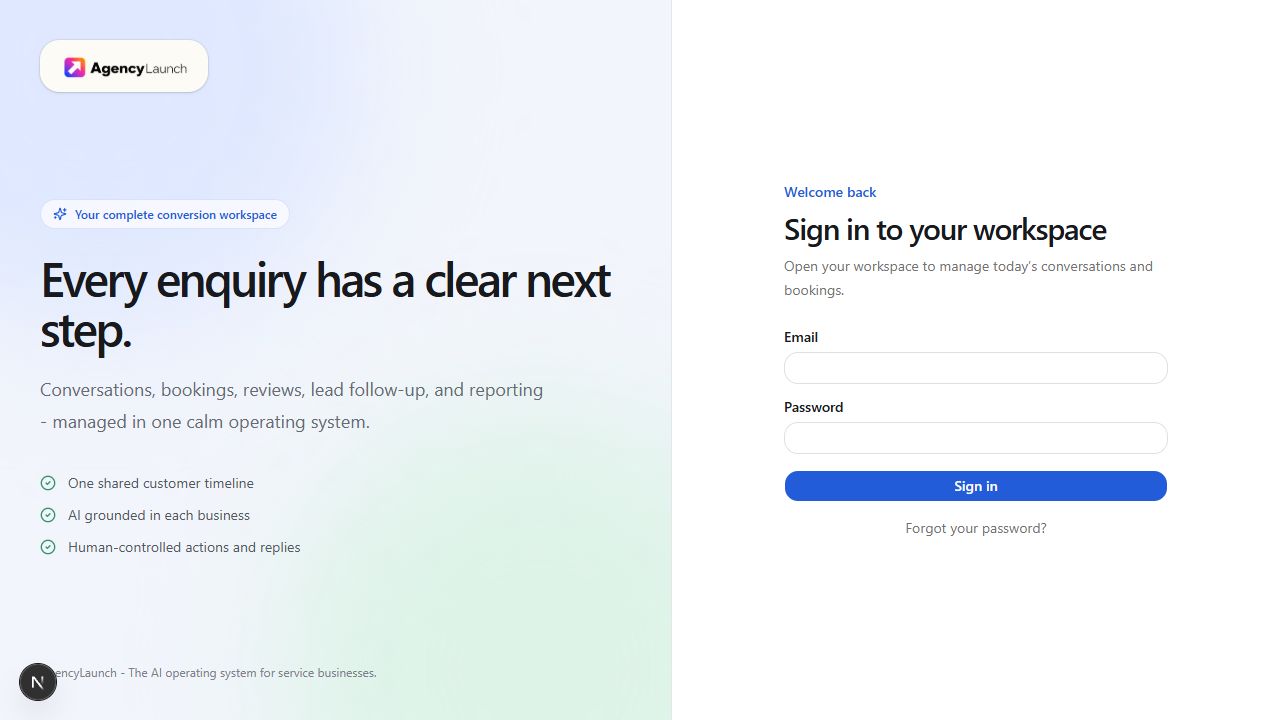
Sign in
- Open the AgencyLaunch sign-in address supplied by your platform or partner administrator.
- Enter the email address attached to your invitation and your current password.
- Select Sign in. AgencyLaunch opens the first permitted workspace, normally Today.
- If you manage more than one business, check the business card at the top of the left navigation before doing any work.
Understand the shell
- Business card: shows the current business and category. Use Choose business at the top of the sidebar to select the business for operational pages. Save or finish your draft before switching; page selections and unsaved drafts can reset.
- Workspace: Today, Inbox, Lead Rescue, Pipeline, Requests, Appointments, and Customer Portal contain daily customer work.
- Growth: Reputation, QR Campaigns, Knowledge, Automations, and Analytics improve and measure the funnel.
- Agency: agency owners and managers use Clients; agency owners also see Agency subscription. The business Billing link is separate. Open Settings from the account menu. Controls depend on your role.
- Platform Control: appears only to authorised platform staff. White-label users do not receive platform-wide access.
- Notifications: the bell shows operational alerts, provider warnings, failures, and work requiring attention.
Use AgencyLaunch on mobile
- Select Open navigation in the top bar.
- Choose a workspace. The navigation closes and the selected screen opens.
- Use Choose business inside the navigation drawer, then confirm the business heading before editing a record.
- Open the account area from the navigation when you need profile or sign-out controls.
Chapter 02 · Daily control
Today dashboard
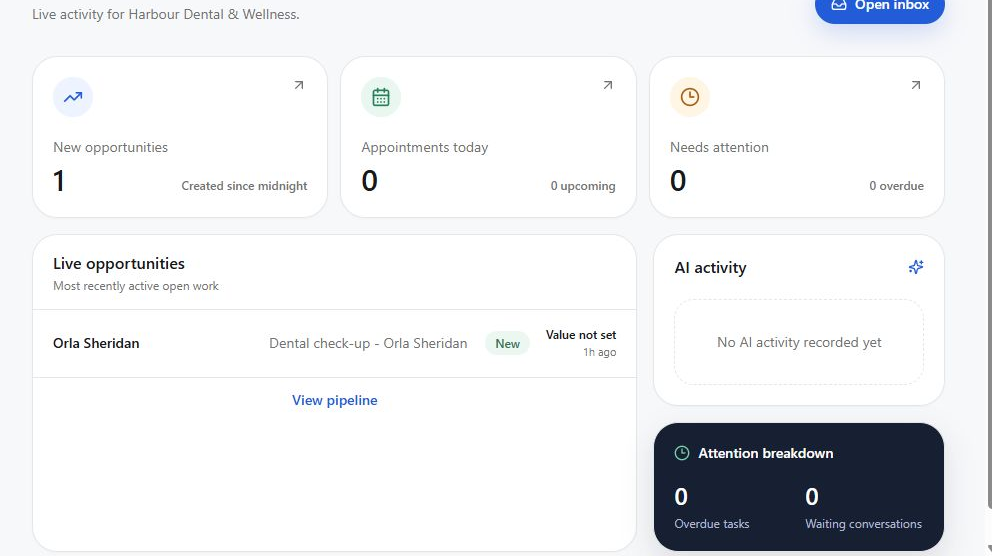
Use Today as the morning control board. It summarises movement, appointments, urgent work, AI activity, and funnel health.
Start at: /today
Run the daily review
- Confirm the business name in the Today heading as well as the sidebar. If they differ, use a scoped operational page and report the mismatch before relying on the overview.
- Read New opportunities, Appointments today, and Needs attention. Treat overdue work and breached response commitments first.
- Review Live opportunities and open any record whose next action is unclear.
- Review AI activity. This explains what the assistant qualified, offered, or scheduled. AI actions that need human approval remain pending.
- Read Funnel health. Open any Google, delivery, calendar, communications, or AI warning rather than assuming it will self-correct.
Suggested cadence
Start of day
Review unread conversations, requests due today, pending appointment decisions, breached SLAs, and provider warnings.
End of day
Clear unassigned work, confirm tomorrow's appointments, review failed automation runs, and check that callbacks have outcomes.
Chapter 03 · Customer conversations
Inbox and conversations
Handle messages in a shared workspace with ownership, response commitments, customer history, AI-assisted drafts, notes, and follow-up tasks.
Start at: /inbox
Process a conversation
- Choose the business in the sidebar, then use the conversation status filter in Inbox.
- Search by contact, subject, or message text, then open the required conversation.
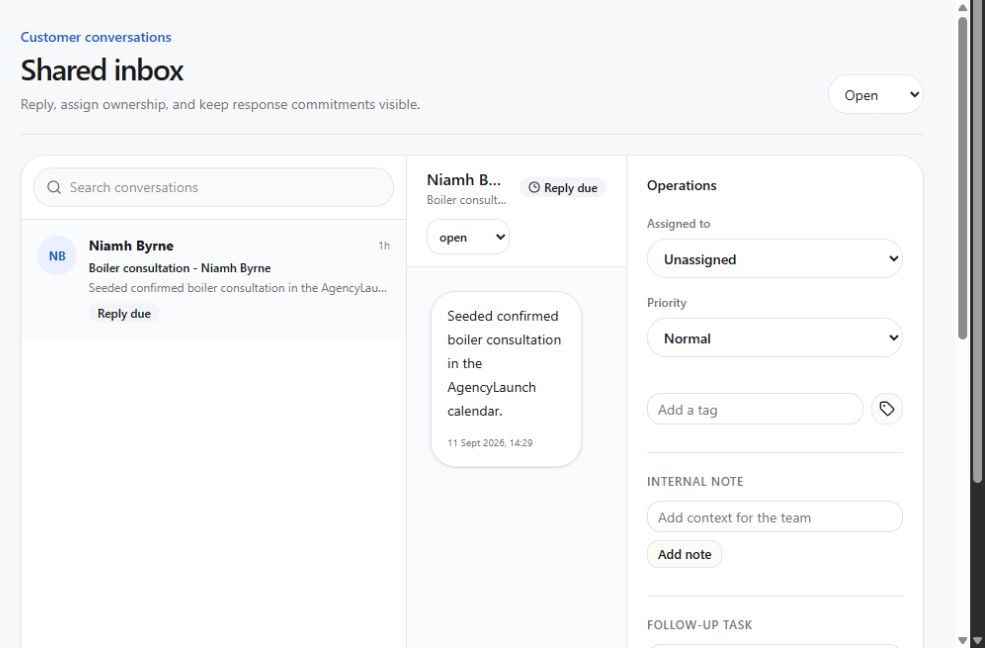
- Read the full message trail before replying. Check the contact record, SLA badge, assignment, priority, tags, notes, and open tasks.
- Assign the conversation to the person responsible and set an honest priority.
- Write a response, or select Draft with AI. Review every AI draft, check any displayed knowledge citations, edit it, then send it yourself.
- Add internal context as a note. Notes stay inside AgencyLaunch and are not sent to the customer.
- Create a follow-up task when the next action will happen later or belongs to another team member.
- Change the conversation status when the thread is genuinely resolved, pending, or closed.
Handoff and escalation
- Assign the conversation and add a short internal note explaining what is needed.
- Create a task with a due time for a callback, quote, clinical check, or manager decision.
- Use high or urgent priority only when it changes the team's response order.
- If the customer asks to stop contact or raises a privacy issue, stop normal follow-up and escalate to an owner or manager.
Setting up Twilio for a client? Follow the detailed Twilio guide for credentials, numbers, registration, country permissions, routing, forwarding, WhatsApp and real delivery tests. The agency creates a separate client account, reviews number pricing before purchase, or connects a number owned by that client account. Existing-account transfers remain support-assisted. Businesses do not need a Twilio signup.
Chapter 04 · Feature guide · Missed enquiry recovery
Lead Rescue
Recover missed calls by starting a compliant SMS or WhatsApp conversation, creating the CRM records automatically, and giving the team full control in the shared Inbox.
Start at: /lead-rescue
Follow the activation and delivery path
- A missed or unanswered call creates a rescue event for the selected business.
- Lead Rescue checks quiet hours, consent, opt-outs, frequency limits, channel health, WhatsApp template rules, and the effective AI policy.
- The approved SMS or WhatsApp follow-up creates the contact, opportunity, conversation, outbound message, and delivery tracking record.
- The business team opens the conversation in Inbox, uses human takeover when needed, sends the reply through the connected channel, and returns safe enquiries to AI.
- Reporting records contact, reply, qualification, callback, booking, recovered value, usage, and the final outcome.
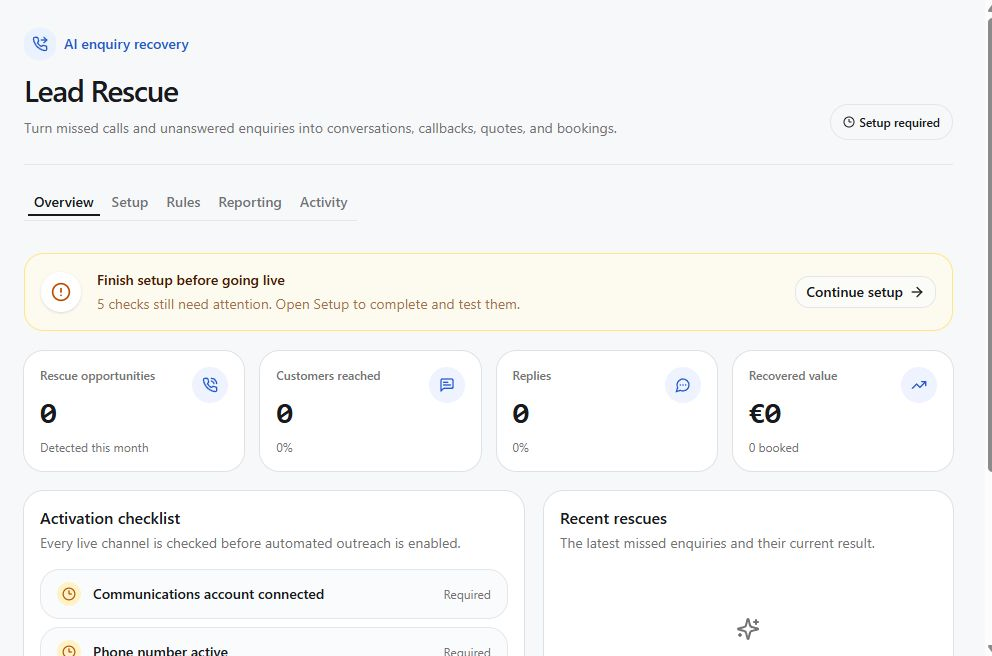
Understand the five tabs
- Overview shows activation health, rescue opportunities, contact and reply rates, recovered value, and recent outcomes.
- Setup connects the business number, call forwarding, SMS, WhatsApp, tests, and activation. Agency owners manage provider accounts, number purchases and WhatsApp onboarding; authorised business users manage operational settings within their permissions.
- Rules controls whether rescue is enabled, channel priority, and whether safe AI replies are automatic, approval-only, or human-only.
- Reporting shows the recovery funnel, delivery usage, booking rate, qualification rate, and recovered value.
- Activity provides a traceable list of detected calls, policy decisions, deliveries, replies, and outcomes.
Set quiet hours and human handoff
Open Lead Rescue → Rules. Set Quiet hours start and Quiet hours end, check the timezone shown and save. These hours suppress the initial missed-call rescue message; they do not stop incoming replies. An overnight window is supported. Set equal start and end times to disable quiet hours.
When a customer asks to speak to a person by SMS, WhatsApp, or a reply to a routed business email, the assistant acknowledges the request without promising a booked callback time, pauses AI, and creates an assignable follow-up task. Open Inbox → Needs a person, assign the conversation and task to a business team member or eligible agency user, then follow up. Use Return to AI only when the handoff is resolved.
Handle a rescued enquiry
- Open Lead Rescue and confirm the selected business and the Active badge.
- Review the newest rescue in Overview or Activity. The first safe follow-up is queued through the configured channel.
- Open Inbox. SMS and WhatsApp threads are labelled with their channel and contain the complete customer message trail.
- Select Take over when a person should control the conversation. AI stops replying to that thread immediately.
- Write or edit the response and send it. The reply is delivered through the connected channel and tracked in the same conversation.
- Use Return to AI only when the enquiry is safe for the configured autonomy rule. Managers and owners control this decision.
- Record the real outcome, such as qualified, callback requested, or booked, so reporting reflects the customer result.
Chapter 05 · CRM
Pipeline and customer records
Track commercial opportunities without separating them from the contact, conversation, request, appointment, and activity history.
Start at: /pipeline
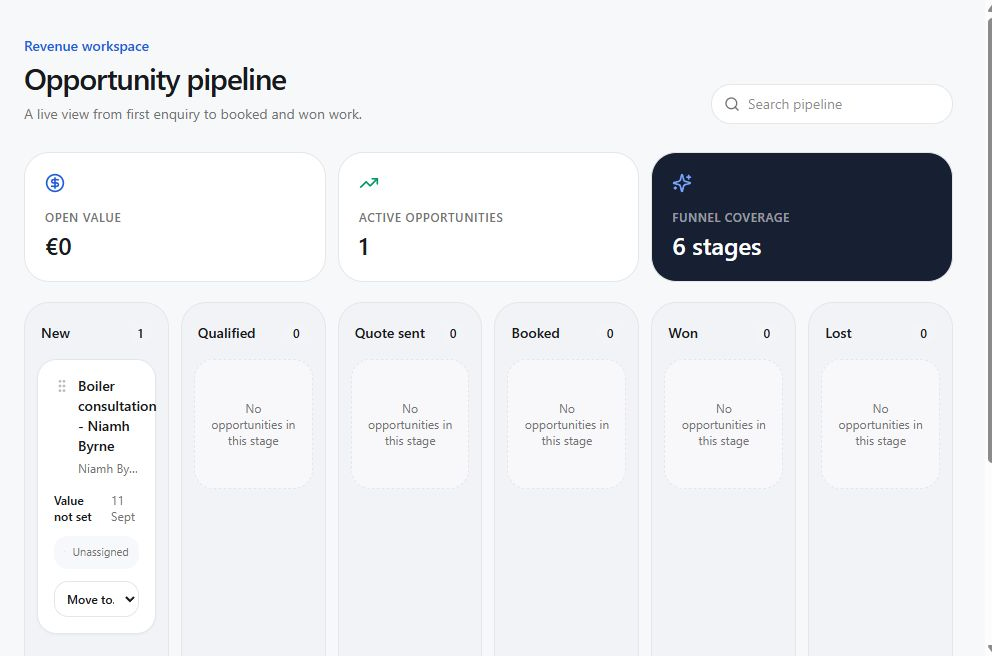
- Choose the business in the sidebar and use Search pipeline to find an opportunity.
- Read the opportunity card's title, customer, value, update date, assignee, and stage column.
- Use Move to… to choose an available next stage when the real work progresses. The dropdown lists permitted transitions.
- Use Load older opportunities when more records are available. On narrow screens, scroll the board horizontally to see other stages.
- Use Inbox for conversation notes, tags, assignment, and follow-up tasks. The pipeline card is not a full customer-record editor.
Chapter 06 · Enquiry fulfilment
Service requests
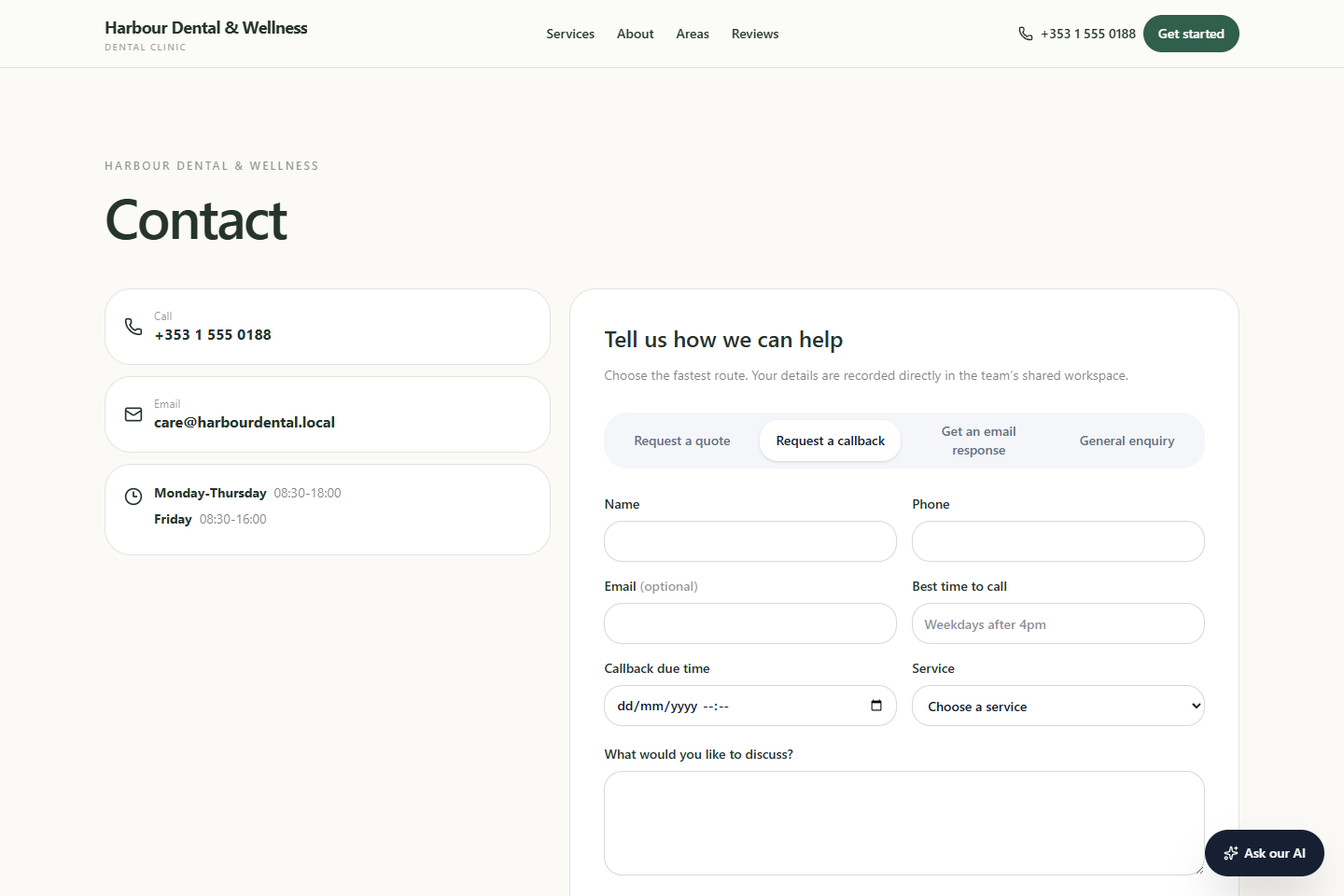
Turn public quote, callback, email-back, and booking enquiries into owned work with due times and recorded outcomes.
Start at: /requests
Process a request
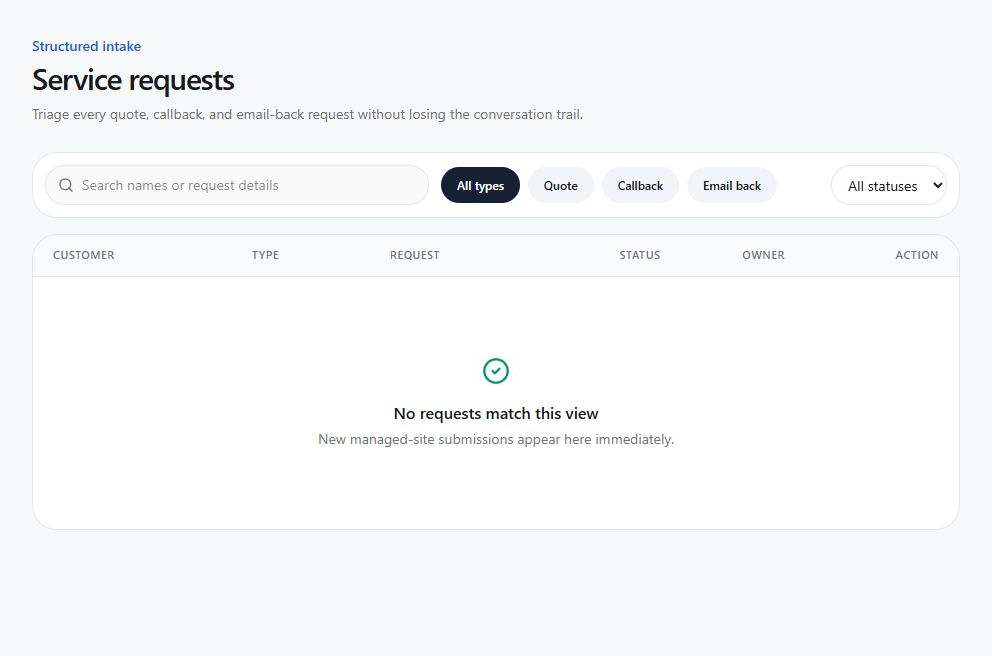
- Use the request type and status filters, then search by customer or request details. Review visible due times and unassigned work first.
- Read the request card, preferred contact window, due time, and assignment. Use its conversation icon to open the related Inbox thread.
- Assign an owner and select Start work when someone is actively handling it.
- For a quote, confirm scope and collect missing information before promising price or timing.
- For a callback, call within the requested window where possible and record the outcome.
- For an email-back, reply through the linked conversation so the response and SLA are tracked.
- Select Complete for an in-progress request once its work is finished. For withdrawn or duplicate enquiries, record the context in the conversation and ask the account administrator to resolve any status the screen cannot change.
Chapter 07 · Scheduling
Appointments
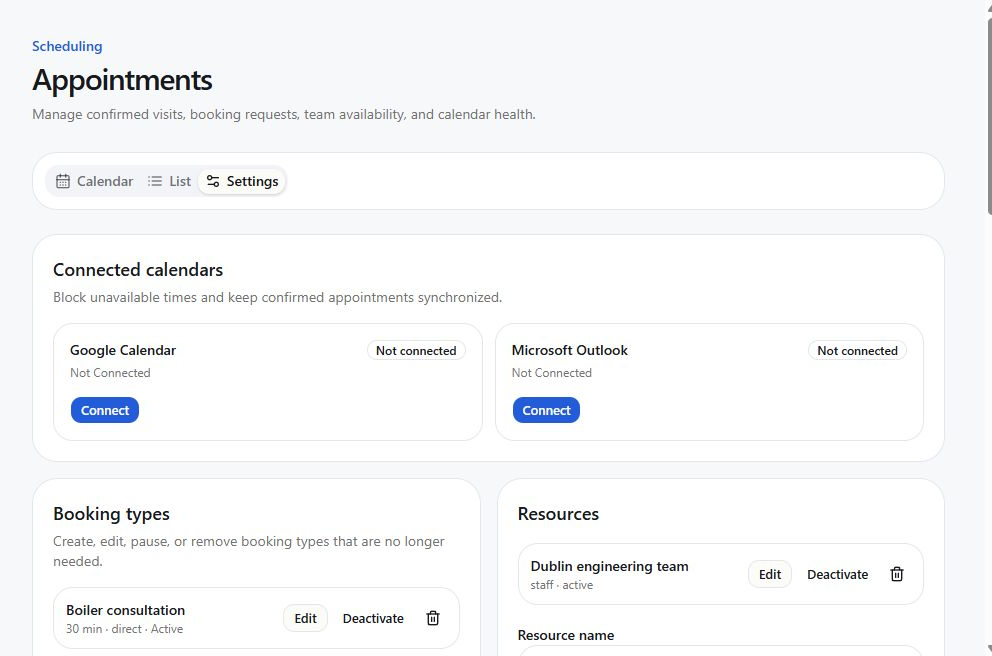
Open Booking settings for Booking types, People & resources, Availability, Time off & closures, Calendar connections and Booking widget. Select the relevant section before adding or editing a record.
Manage confirmed visits, booking requests, availability, resources, and calendar health without creating double bookings.
Start at: /appointments
Work with the calendar
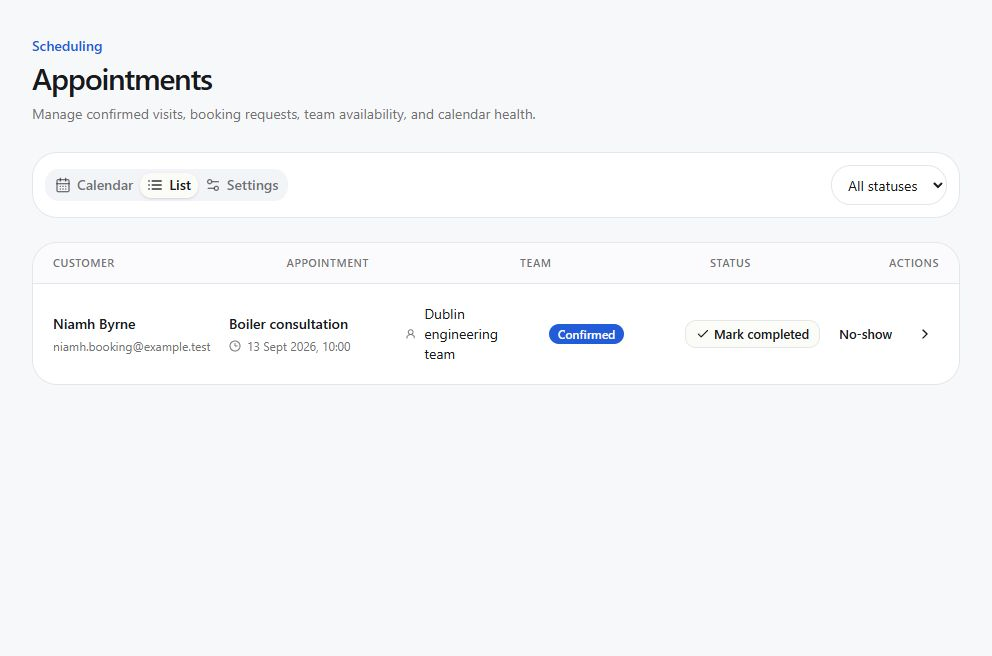
- Choose the business in the sidebar, then choose Calendar for the weekly view or List for filters and compact processing.
- Move between weeks and open an appointment to review service, time zone, customer, resource, status, notes, and provider state.
- For a requested booking, verify availability and select an appropriate confirmed slot. A direct booking is already confirmed if its hold completed successfully.
- Use the appointment's reschedule action to choose a new valid slot. Do not manually create a second appointment as a substitute.
- Cancel with an accurate reason. Record completed and no-show outcomes after the appointment.
- Check calendar health when a provider sync is delayed or degraded. The AgencyLaunch appointment remains the operational record while reconciliation is pending.
Public booking and availability
The standalone booking page and embedded widget check saved hours, resources, time off, notice periods, buffers, existing appointments, temporary holds and connected calendar busy times. A conflicting slot cannot be confirmed. Connected calendars refresh periodically, so external changes are not instantaneous; new widget bookings stop when coverage is stale or unavailable. Instant bookings confirm a reserved slot; request-to-book appointments need staff confirmation. After booking, customers should save the secure management link shown for rescheduling or cancellation. Disabling new bookings keeps existing management links usable.
Configure scheduling
Owners and managers with scheduling permission can open Booking settings. Change one area at a time and test the public booking journey afterwards.
- Booking types: service name, duration, direct or requested mode, buffers, minimum notice, booking horizon, and slot interval.
- Resources: staff, rooms, equipment, eligible members, location, and active state.
- Availability rules: recurring hours in the correct time zone.
- Blackouts: holidays, leave, exceptional closures, or resource downtime.
- Booking widget: select the appointment types customers may book, enable online booking and save. Copy the booking link or paste the embed code into an HTML/embed block on the client’s existing website. No AgencyLaunch website is needed. The business must be active.
- Calendar connections: connect Google or Microsoft, then select Choose calendars. Choose a writable Calendar for new bookings and up to 10 calendars whose busy times block availability; the booking calendar is always included. Save calendars and test. Availability is business-wide, not mapped to individual staff. Once appointments have been written to a destination calendar, changing it requires support.
Chapter 08 · Customer self-service
Customer Portal
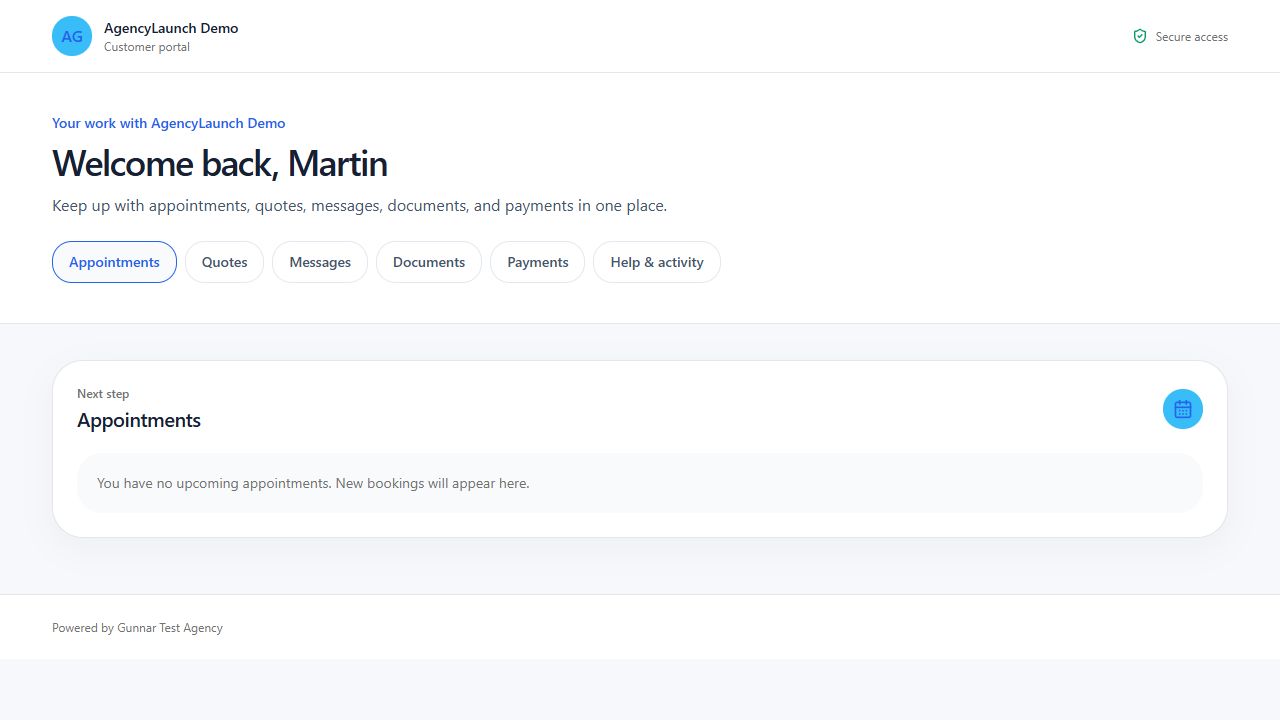
Give each customer a secure, branded place to follow appointments, requests, quotes, payments, messages, documents, and recent activity without creating a password.
Staff start at: /customer-portal
Customer route: /portal/signin/[business-slug]
Set up customer sign-in
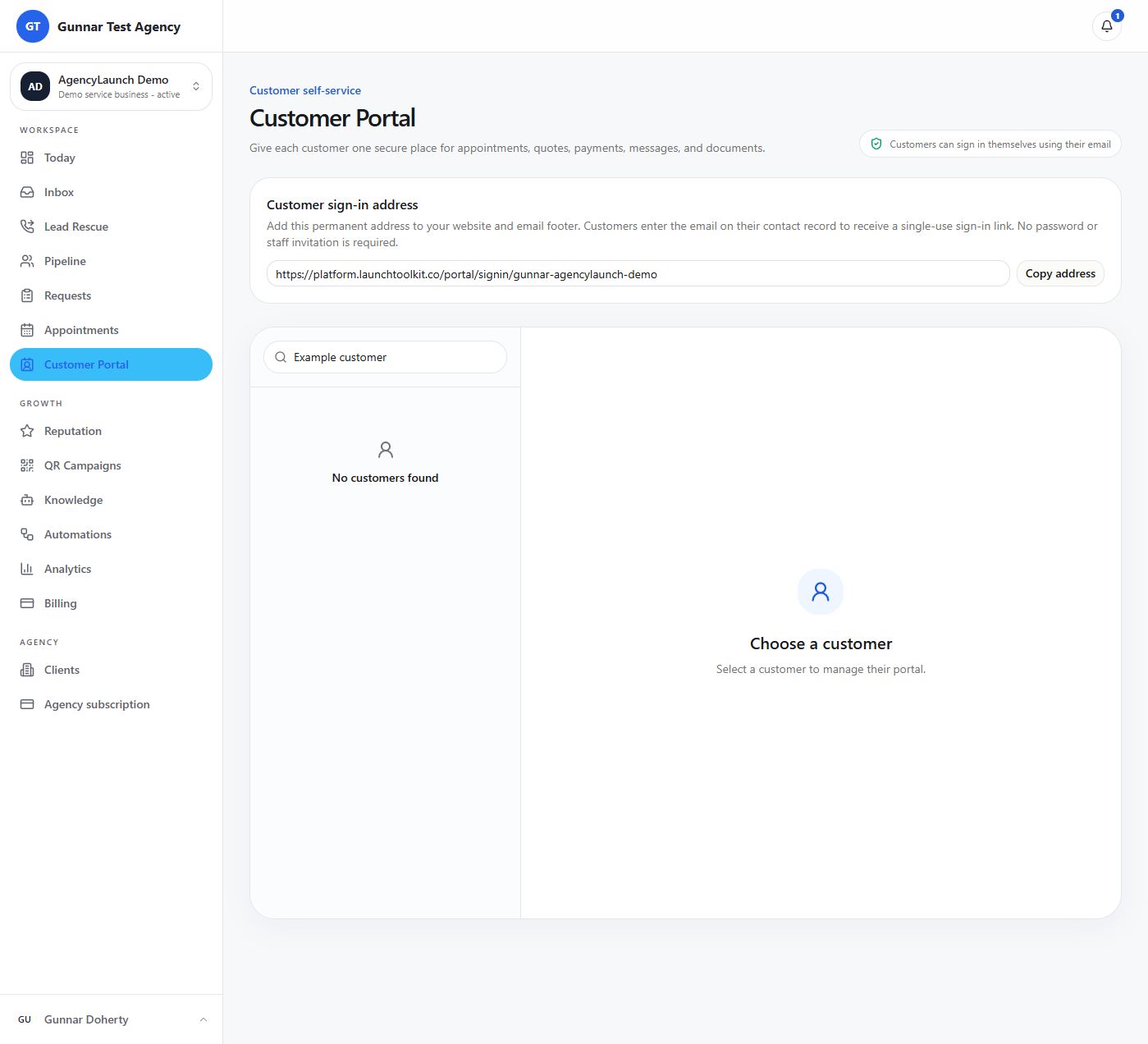
- Open Customer Portal in the correct business workspace. Copy the Customer sign-in address at the top.
- Add this permanent address to a Customer portal button on the business's existing website and to its email footer. It uses the active partner domain when configured.
- Ensure the customer has one active contact record with their correct email address. No separate customer account, password or staff invitation is needed.
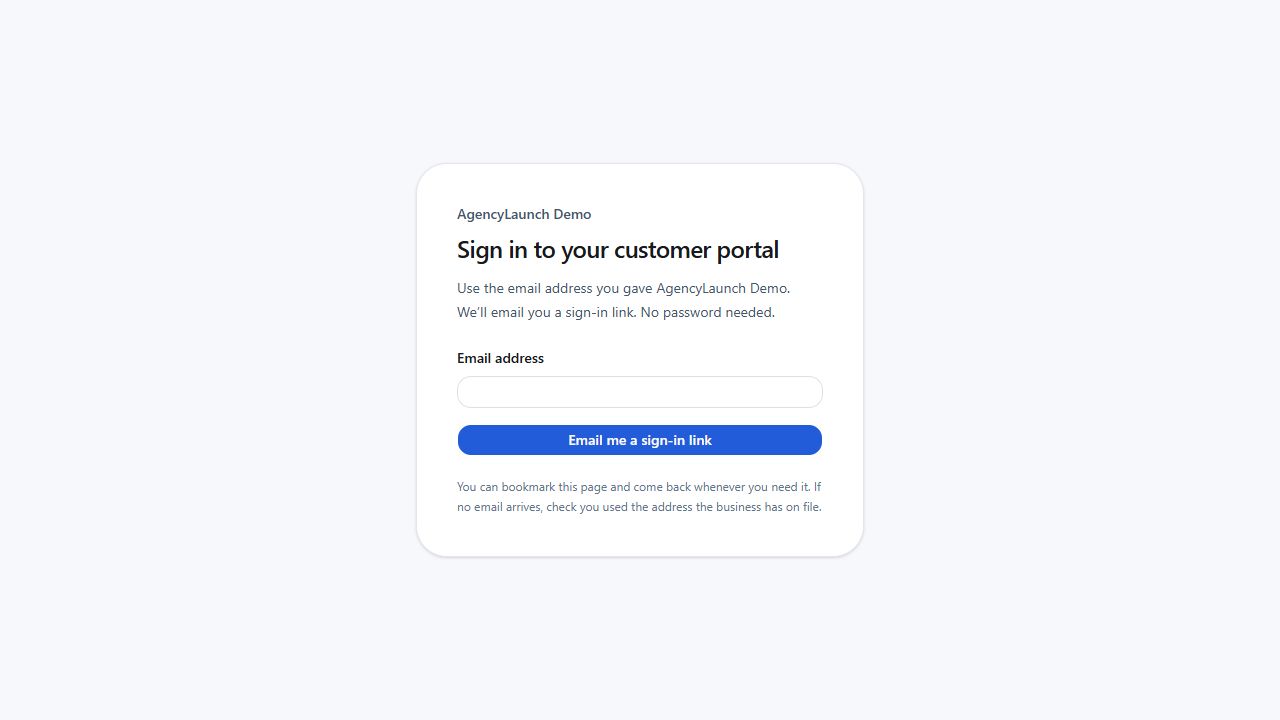
- The customer opens the permanent address, enters that email, and receives a single-use sign-in link valid for 15 minutes. They open it on the device they want to use and select Continue to portal.
- They stay signed in on that device for 30 days unless they sign out or staff revoke that session. Returning later, losing an email, or changing devices simply means repeating the email sign-in step. Their existing appointments, quotes and messages remain in place.
- If no email arrives, check spam and confirm the contact email. Repeated requests are limited to three per email in 15 minutes. The page intentionally does not reveal whether an email address is on file. Duplicate records with the same email must be resolved by staff.
Existing direct access links continue to work until expiry or revocation. Their unavailable page links to email sign-in. Staff can still email a direct access link using Secure access → Email access link; these links last 12 months and replacement invalidates earlier direct links. The permanent sign-in address is the one to publish publicly. Never publish a private direct link.
Revoke ends that individual link or device session. An active customer who still owns their email can sign in again. Archive the contact to stop all portal access and self-service sign-in for that customer. Email-address changes invalidate sessions verified against the previous address.
Publish customer-facing work
- Quotes: enter a clear title, reference, amount, currency, validity date, and description. Save as draft or publish. The customer can accept or decline a published quote.
- Payment requests: enter the amount, reference, due date, and HTTPS link supplied by the business's hosted payment provider. AgencyLaunch never collects card details in this flow. After checking the full amount was received, select Payments → Record payment received for the request, enter the receipt date/time (your local time) and transaction reference, and confirm. The customer sees Payment recorded as received by the business and the Pay button disappears. This is staff recording; external providers do not update the status automatically. Partial payments cannot settle the request. For a recording error, select Correct recording, enter the reason, and reopen the request. The original receipt and correction remain in the business audit log. This does not refund money or change the external payment link.
- Documents: upload a PDF, image, or text file up to 15 MB. Shared files appear immediately. Withdraw a file when it should no longer be available. Each download checks that the document is still shared and the customer access is still active. Withdrawal or revoked access blocks previously copied download links; it cannot remove a copy the customer already downloaded.
- Appointments: customers see their real booking state. A change or cancellation request becomes an inbound conversation for the team to approve. It does not silently alter the booking.
- Messages: customer replies appear in the existing Inbox. Internal notes never appear in the customer portal.
Chapter 09 · Customer trust
Reputation
Use Reviews for daily work, Alerts for issues, and Google setup to connect or review the provider.
Monitor reviews, prepare careful replies, and keep Google Business Profile connection health visible.
Start at: /reputation
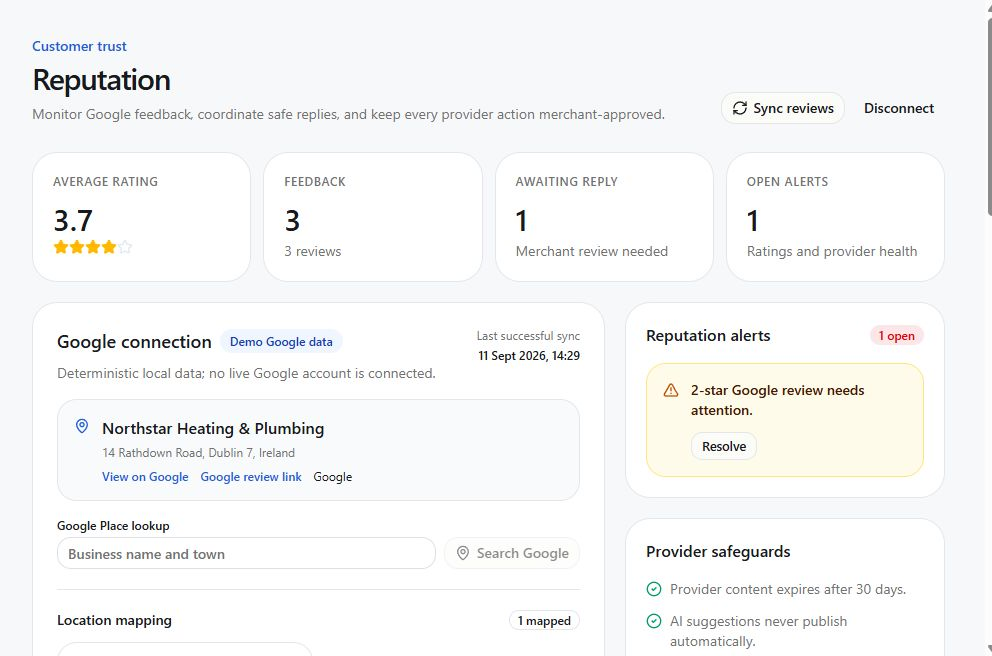
- Select the business and confirm the mapped Google location.
- Review rating, review volume, unreplied items, alerts, last sync time, and provider health.
- Synchronise when the connection is healthy and the latest data is needed. Do not repeatedly start a second sync while one is active.
- Open a review and read it in full. Select Draft with AI when available.
- Edit the draft so it is factual, specific, professional, and free of private customer information.
- Approve and publish according to your role. If an approved draft changes, reapproval is required.
- Use delete or revoke only when the published response should be removed. AgencyLaunch records the lifecycle.
Chapter 10 · Offline conversion
QR campaigns
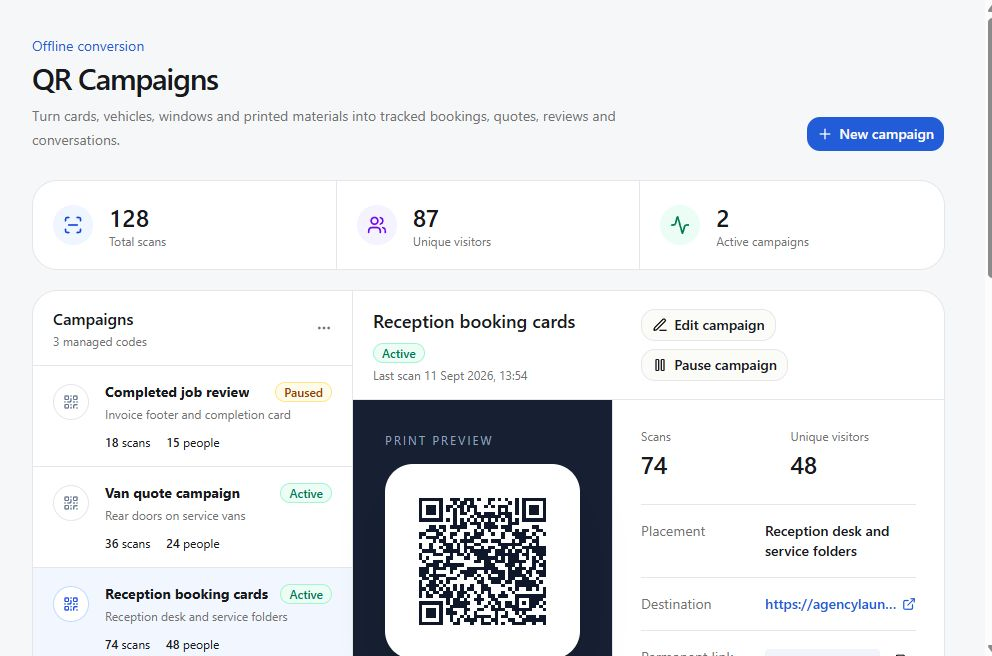
Create permanent, branded QR codes for cards, vehicles, windows, leaflets, invoices, and review materials, then measure how each placement turns offline attention into customer actions.
Start at: /qr-campaigns
Create and publish a campaign
- Select the correct business, then choose New campaign.
- Use a clear campaign name and a real placement such as Service van 2, Reception review card, July leaflet, or Invoice footer.
- Choose the customer destination: Booking, Quote, Review, WhatsApp, or a safe custom HTTPS address.
- Check the destination carefully. The permanent QR code can be redirected later without reprinting it.
- Choose foreground and background colours with strong contrast so phone cameras can read the code reliably.
- Create the campaign and inspect the real code preview.
- Download SVG for professional print and signage. Download PNG for documents, email artwork, and simple digital use.
- Use Test destination before sending artwork to print. Scan a physical proof at the intended size as the final check.
Operate and improve a campaign
- Read Total scans for overall activity and Unique visitors for an approximate count of different scanners.
- Compare placement performance and connect QR activity to downstream booking, quote, review, and conversation outcomes in Analytics.
- Edit the campaign when the destination, name, placement, or colours need to change. Changing the destination does not change the printed code.
- Pause a campaign to stop a temporary or incorrect route. Resume it when the destination is ready again.
- Archive only when the campaign is permanently retired. Archived campaigns cannot be restored.
Chapter 11 · Grounded assistance
Knowledge and AI
Control what the assistant can rely on, approve revisions, and understand how citations, confirmations, handoff, and budgets protect the business.
Start at: /knowledge
Maintain approved knowledge
- Select the business and review source status, revision status, and last update.
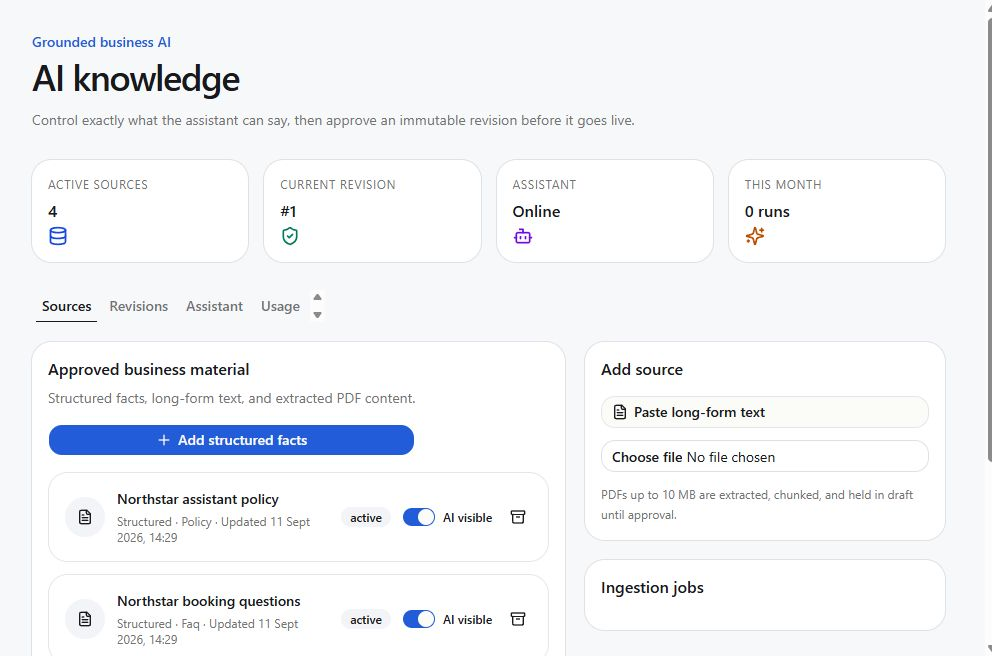
- Add structured facts, pasted text, or a PDF using the available source controls. Verify the information and use clear headings and precise factual language.
- Review the new revision against the original source and the currently approved knowledge.
- Approve the revision when every claim is current. Unapproved content is not treated as trusted business knowledge.
- Use the retrieval preview to check which approved information a question finds. Open Assistant for the name, greeting, tone, and handoff message; open Usage for activity, costs, and monthly guardrails.
What the assistant can do
- Answer from approved business knowledge and cite the supporting source.
- Qualify a visitor's intent and collect appropriate contact details.
- Offer valid appointment options or create a requested booking according to configured rules.
- Prepare callbacks, quote requests, email-backs, and staff reply drafts.
- Hand off when confidence is low, the request is sensitive, or the action requires a person.
What the assistant cannot do
- Invent prices, availability, claims, policies, outcomes, or professional advice.
- Use unapproved sources as trusted facts.
- Complete a consequential tool action without the required confirmation.
- Override permissions, budgets, scheduling rules, provider health, or human approval.
Chapter 12 · Follow-up
Automations
Use curated, versioned recipes to follow up consistently while retaining visibility into every trigger, action, retry, suppression, and failure.
Start at: /automations
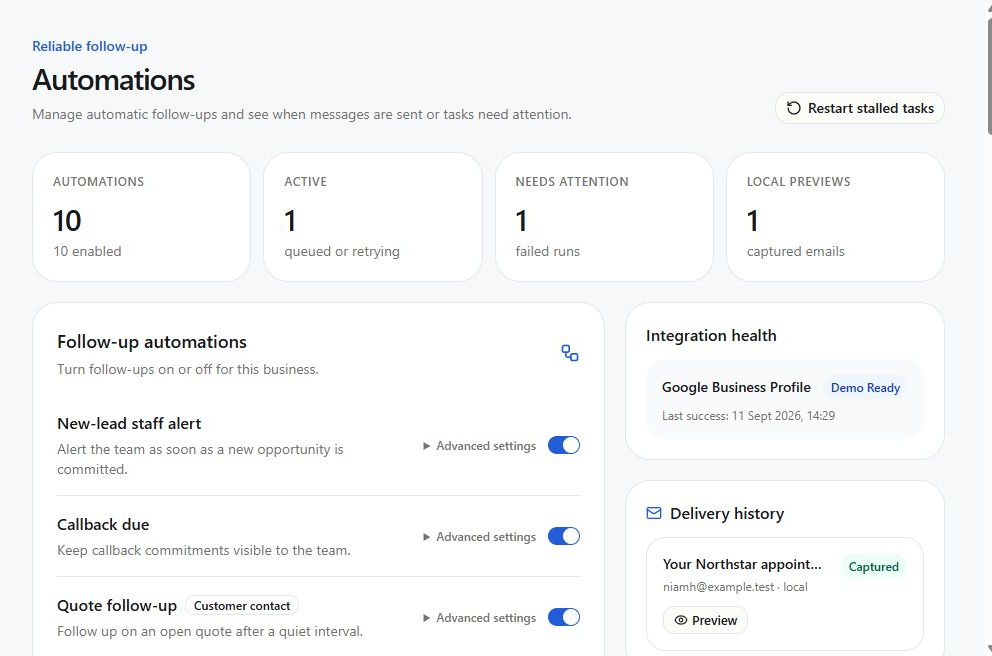
- Select the business and review each recipe's purpose, trigger, conditions, actions, version, and enabled state.
- Enable only recipes that match the business process and notification consent.
- Review recent runs. A succeeded run completed; retrying is waiting for another attempt; failed needs attention; suppressed deliberately did not send.
- Open a run to inspect the triggering record, each step attempt, response, and next retry time.
- Recover a failed run only after fixing its cause. Do not repeatedly retry invalid addresses, revoked consent, or missing permissions.
- Check notification preferences and quiet hours before diagnosing a message that did not send.
Chapter 13 · Performance
Analytics
Measure the funnel from acquisition through conversations, requests, bookings, reviews, automation, AI usage, and provider health.
Start at: /analytics
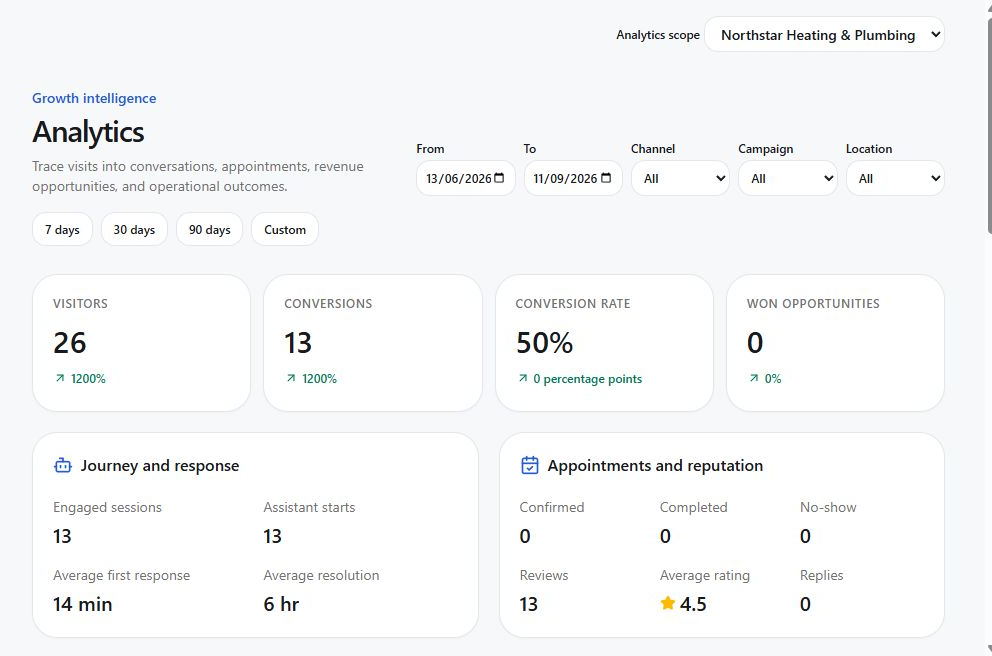
- Choose a business, or an available agency reporting scope, and set the date range before reading the cards. Channel, campaign, and location filters further narrow the report.
- Start with acquisition volume and conversion, then inspect stage movement and outcome rates.
- Review response time, booking completion, request outcomes, review response, automation reliability, and AI usage together.
- Use integration health to explain suspicious gaps. A disconnected source can reduce reported activity without changing real-world demand.
- Open operational records when a metric needs investigation. Aggregates explain patterns but do not replace the source timeline.
Chapter 14 · Administration
Business settings
Setting up for the first time? Start with the preparation checklist.
Maintain accurate business details, locations, team access, notifications, branding, integrations, privacy controls, and exports according to your permissions.
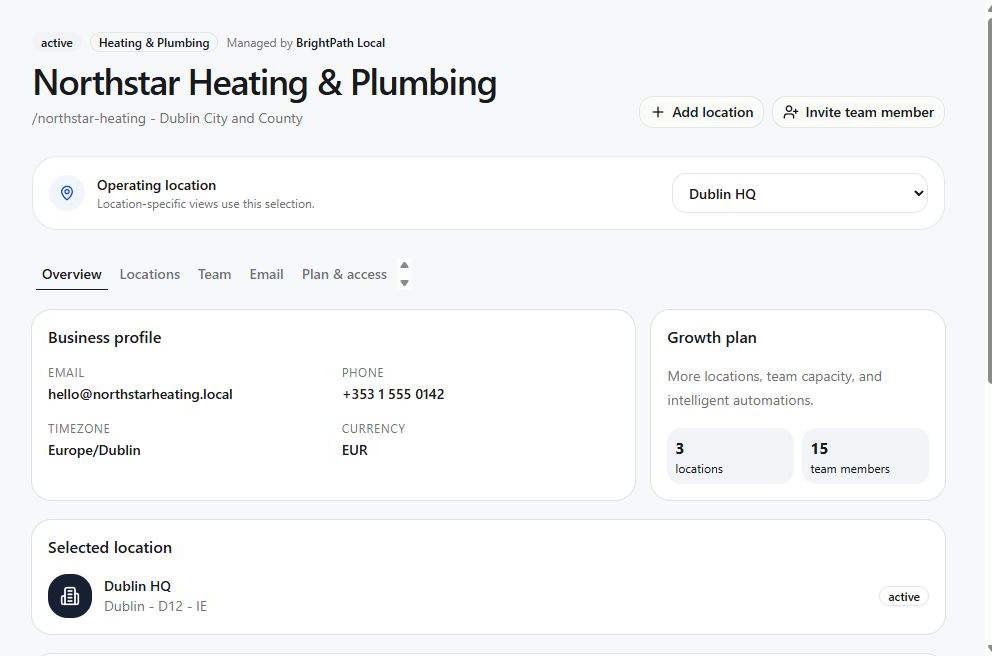
Start at: the account menu → Settings for your profile, password, AI connection information, branding, notifications, and privacy. Agency users open Clients → Open client workspace for business details, locations, team, email setup, and Plan and access.
Set up your agency, then add clients when ready
Start Here has two parts. Part 1: Set up your agency covers your name and logo, connecting Twilio for calls and texts, and an optional web address. You do not need a client for any of this. The Twilio card checks whether your agency account is connected; this does not mean a business phone number or call forwarding is ready.
Part 2: Try it with a business starts with adding a business in Client Accounts. No paying client yet? Add your own business to practise with your existing agency login. Select it in the list in Part 2 to see five business steps: Add a business, Choose what to try, Set up those services, Check that it works, and Ready to use. Start with one service. For calls and texts, this is where you choose the business number and forwarding phone, then make real test calls and send messages. Your agency website advertises your services; it is not a required signup step for your clients.
Your saved checks stay with your login and the selected business. The app checks connections; you tick off tests after trying them. If you change saved service choices, saving unticks the earlier tests and final check, without disconnecting anything. The page explains this before you save. Services waiting for approval still need approval before their tests can be completed. The services video is above the headline, and the older overview is below the checklist.
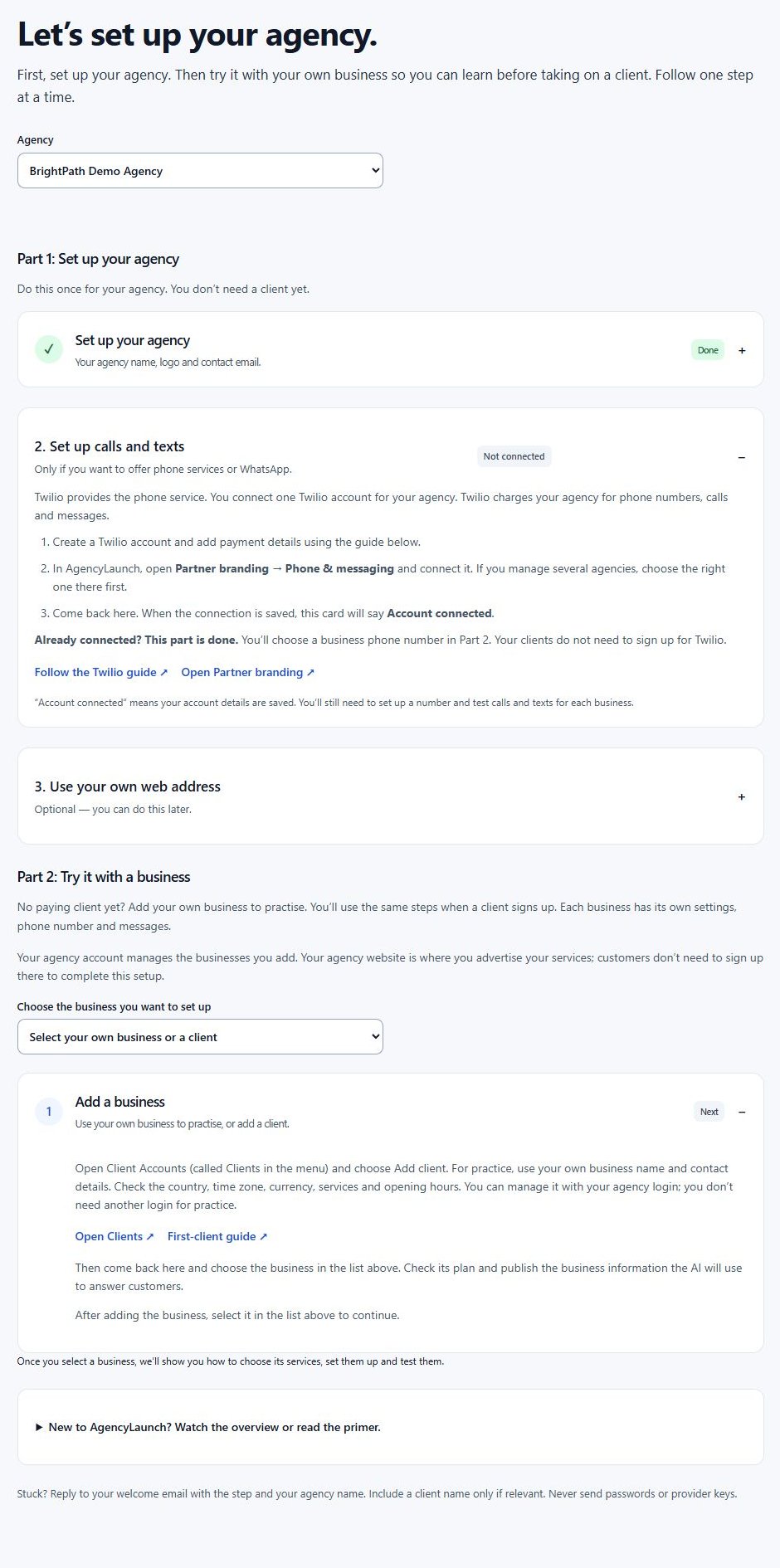
Gather the details below. Connect only the services your client will use. Keep passwords and provider keys out of email; the account owner should authorise connections directly.
Use the complete agency setup walkthrough for invitation, regional settings, owner access, service-specific tests and troubleshooting.
Required to begin
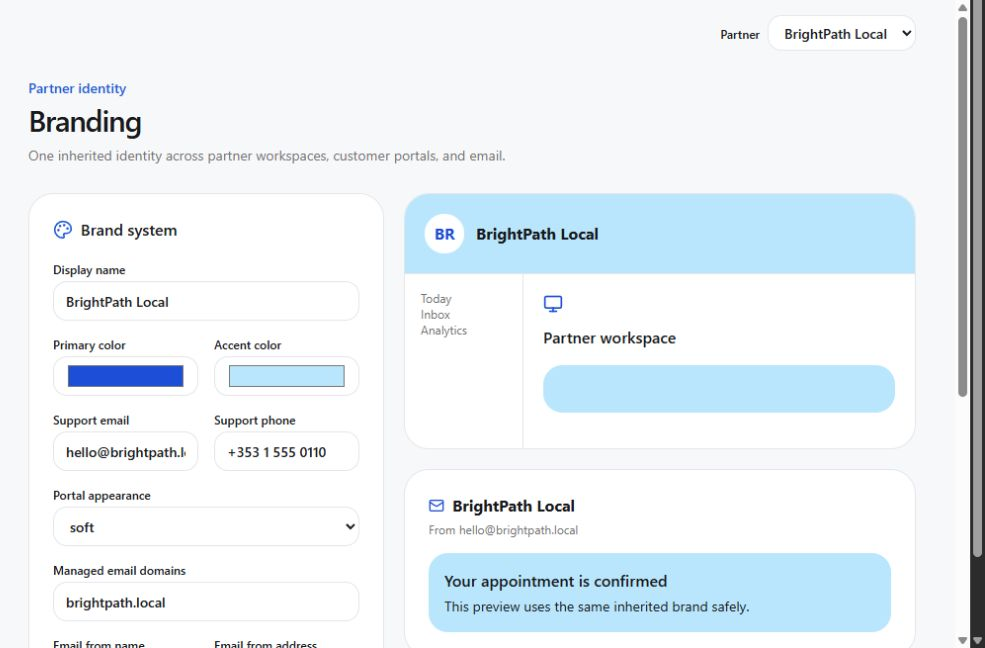
- Agency: welcome login, agency name, logo, colours and support email. Change your password in Settings → Security. Use Settings → Partner branding → Identity & appearance to save your brand.
- Business: name, contact details, location, time zone, services, hours, owner and team emails, and approved FAQs. Start at Clients → Add client, then complete onboarding and approve business knowledge.
Connect when needed
- Custom portal domain: the agency needs DNS access. Open Partner branding → Portal domain, copy the records shown and check the domain until Active. Domain procedure.
- Google reviews: the business owner needs access to the correct Google Business Profile. Open Reputation → Google setup → Connect Google, authorise the account and confirm the correct business location. Review connection procedure.
- Calendar: the owner of the Google or Microsoft calendar authorises access. Open Appointments → Booking settings → Calendar connections. Connect the authorised provider account, select Choose calendars, choose the writable booking calendar and calendars that should block availability, then save and test a booking. Calendar availability applies across the business. Provider OAuth setup must be configured by AgencyLaunch before connecting. Appointment setup.
- Phone, SMS or WhatsApp: connect the agency’s own Twilio account under Partner branding and assign the business number and chosen channels. Twilio bills the agency account for its usage; each number must meet the provider’s country and messaging registration requirements. Open Lead Rescue → Setup and complete the relevant channel checks before activation. Lead Rescue procedure.
- Business email: gather the sender name, reply address and DNS access if using a branded sending domain. Open the client's business workspace → Email. Add the sending domain, enter From name and From email under Business email sender, and select Save sender. Add the displayed DKIM TXT and Return-Path CNAME records to that domain’s DNS, then use Check DNS until both are verified. Coordinate inbound reply routing with AgencyLaunch, then test a sent message and a received reply. A portal domain alone does not configure email. Follow the email DNS, sender and reply-routing procedure; agency Email identity only saves preferences and has no self-service domain verification.
What AgencyLaunch handles
Shared AI, Postmark email and OAuth application credentials belong to the platform team. Partners connect their own Twilio Account SID and Auth Token in Partner branding → Phone & messaging and pay Twilio directly. Clients authorise their own Google/Microsoft accounts; nobody needs the platform’s API keys. If a connection reports that platform setup is missing, reply to your welcome email with the business name, channel and message shown. Do not send passwords.
Billing: invoice and collect your clients’ payments externally. No agency Stripe connection is required. Client suspension is a manual agency decision.
Before final client handover
An agency and a business are separate records. An active managing agency with an active agency owner satisfies the owner-access activation check, so you can operate the client with your existing agency login. Invite a business owner only when they need their own login; an active business owner or a valid invitation with healthy delivery also satisfies that check. Run the service checks below before the client begins relying on the workspace.
- Confirm the selected business, contact details, services, hours and approved knowledge.
- Check the connection state for each service you will deliver. A demonstration or setup state is not a live channel; resolve missing provider setup with AgencyLaunch.
- Send a test enquiry using your own test contact through the chosen channel. Find it in Inbox, reply and confirm the reply arrives. Assign and complete the next action.
- If offering appointments, test a booking and confirm the time, availability and notifications. If offering Lead Rescue, follow its activation checks and verify a controlled test before enabling it for customers.
- If the client needs their own login, review their email and role, send the invitation and confirm they can access the correct business. Explain what is enabled and how to contact your agency.
Keep the business accurate
- Review legal and display names, category, phone, email, address, service areas, time zone, and opening hours.
- Update operational details that have changed. If a field feeds AI or a customer workflow, expect a new revision or review state.
- Review locations separately. Scheduling, Google mapping, availability, and public information can be location-specific.
- Review team memberships. Invite only the person who needs access and choose the least powerful suitable role.
- Remove or revoke access promptly when a user changes role or leaves.
- Review notification preferences, integrations, domains, privacy, retention, and exports on an agreed schedule.
Chapter 15 · Partner operations
White-label partner operations
Provision and oversee authorised businesses with partner branding and management controls while preserving business ownership of operational data.
Understand the partner model
- A partner membership gives access to the partner organisation, not automatic access to every business.
- An active management grant defines which business a partner can manage and which capabilities it receives.
- The business owns its contacts, conversations, requests, appointments, and customer history.
- Platform-wide security, provider secrets, templates, and operator access remain controlled by AgencyLaunch administrators.
Onboard a managed business
- Open Clients and select Add client. Enter the business name, URL slug, category, contact details, first location, and plan. Complete managed onboarding. The agency owner can manage the new business with the same login; a separate owner invitation is optional. Add your own business as a client too if you want to use the services yourself.
- Open managed onboarding and complete the primary goal, primary service, response target, owner details, and operating notes.
- Verify services, locations, business details, opening hours, and customer routes with the business owner.
- Build and approve the knowledge sources the assistant needs.
- Configure requests, appointment modes, resources, availability, notifications, and relevant integrations.
- Complete the readiness checks for AI, email, Lead Rescue, Google, calendars, permissions, and customer handoff. Leave unconnected providers visibly in setup state.
- Invite the business team with appropriate roles and provide a short operational handover.
Configure the white-label portal
- Open Settings → Partner branding and verify the display name, logo, colours, support contacts, email identity, and portal appearance.
- As partner owner, enter a hostname such as portal.partnerdomain.com and select Connect domain.
- Copy the exact TXT and CNAME records shown by AgencyLaunch into the partner's DNS provider. DNS changes can take time to appear.
- Select Check domain. Do not publish the hostname to users until its status is Active and the HTTPS link opens correctly.
- Preview the portal at desktop and mobile widths. Test sign-in, password reset, an invitation, a customer portal link, and a Google or calendar connection return.
- Invite partner staff and use partner manager for operational work. Reserve partner owner for membership, branding, domain, and commercial authority.
- Review plans, subscriptions, entitlements, usage, and reporting. Escalate plan definitions or platform-wide provider changes to AgencyLaunch.
Chapter 16 · Agency account management
Clients: accounts and team access
An agency is a white-label partner. Its client accounts are service businesses; their customers use the separate Customer Portal.
Start at: Agency → Clients (/clients). Agency owners and managers need an active management grant for the chosen business.
Find or add a client
- Choose the agency if the Agency selector is shown.
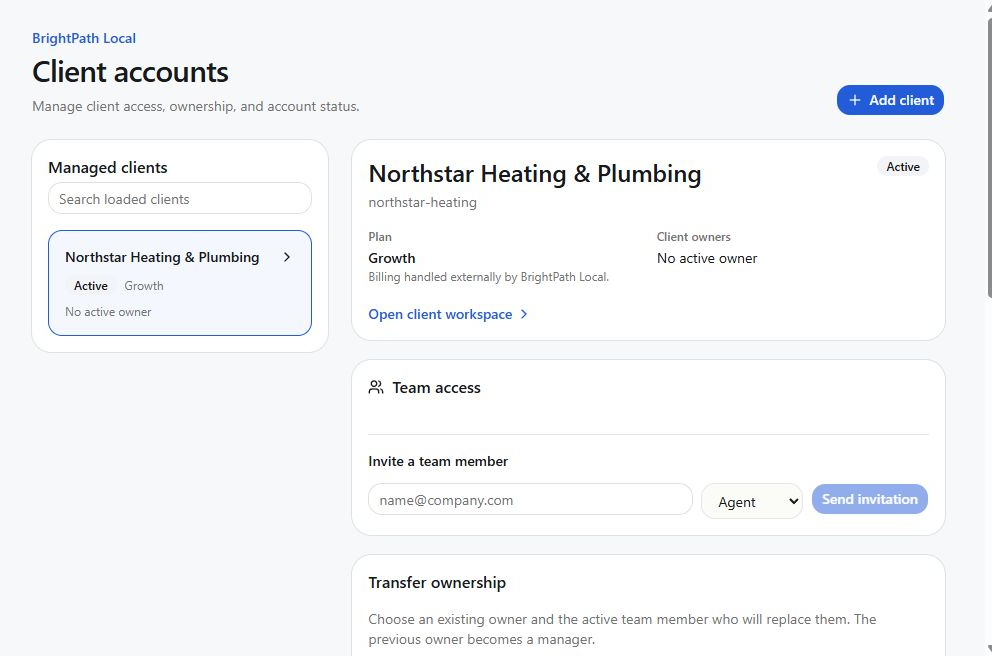
- Search by client name, slug, or owner email using Search loaded clients. Search covers loaded records; select Load more clients to include more.
- Select a card to inspect its status, plan, owners, team, current-month usage, and Recent account activity.
- Select Add client to create a business and enter managed onboarding. Use Open client workspace to configure an existing client's services.
Invite, change, or revoke team access
- In Team access, enter the person's email and choose a role. Agency managers can manage Manager, Agent, and Analyst access; Owner access requires an agency owner.
- Select Send invitation. A queued invitation still depends on email delivery and acceptance. Confirm the email and business before sending.
- Use an active member's role selector to change their role. Use Revoke access to stop that person's access to this business, or Restore access to restore a revoked membership.
- Under Pending invitations, select Revoke invitation when an unused invitation should stop working.
Transfer ownership
An agency owner selects a Current owner and an active team member as New owner, then selects Transfer ownership. The previous owner becomes a manager. The last active owner cannot simply be removed or demoted; transfer ownership first. An invitation must be accepted before that person is an active replacement.
Suspend or reactivate the account
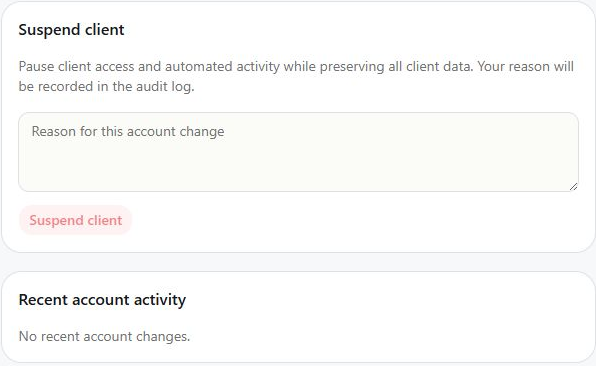
- As agency owner, open Suspend client. Enter a reason of 3 to 1,000 characters, then select Suspend client.
- The client sees Account suspended and is directed to the agency. Client access and automated activity pause; business data and team memberships are preserved.
- To restore service, enter a reason under Reactivate client and select that action. The account returns to its previous active or onboarding state.
- Review outstanding work separately: previously stopped activity is not automatically replayed. Check Recent account activity for the actor, time, and reason.
Chapter 17 · Agency account management
Billing relationships
| Relationship | Where it is managed | Who receives payment |
|---|---|---|
| Agency pays for AgencyLaunch | Agency subscription, managed by the agency owner. | The platform owner, through the platform's Stripe account. |
| Client business pays its agency | The agency's external invoicing and payment system. | The agency, through its own external payment arrangement. |
| A customer pays the service business | Customer Portal payment request with a hosted payment link. | The recipient configured with that hosted payment provider. |
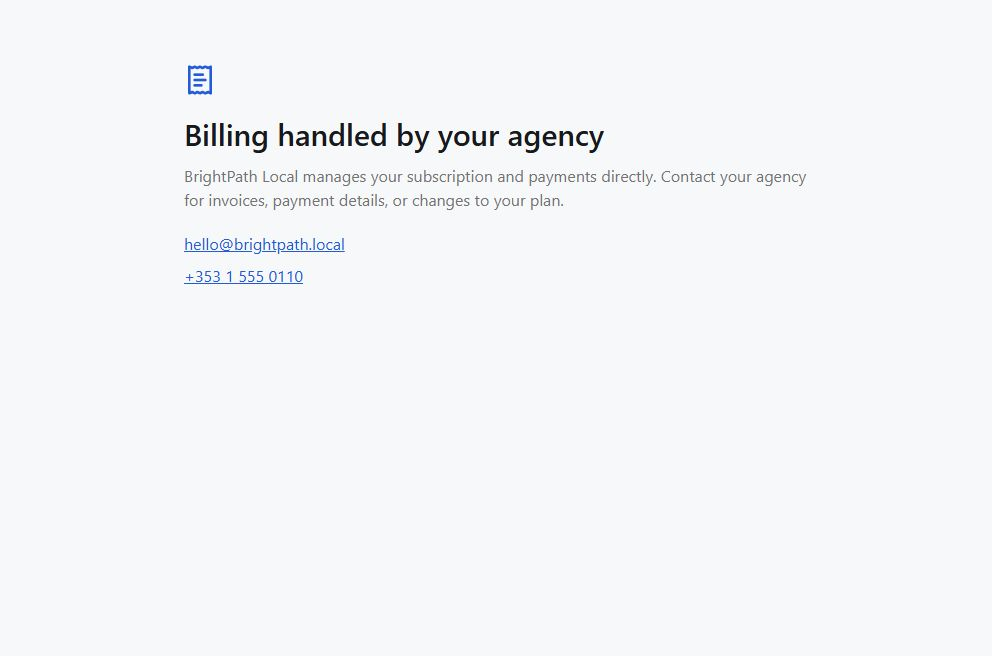
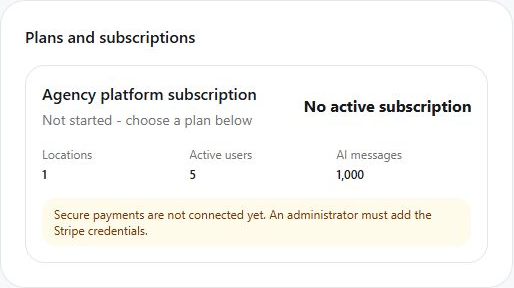
Agency owners open Agency subscription at /control/billing?scope=agency. Secure checkout requires the platform Stripe connection. The managed client's Billing screen says Billing handled by your agency.
A managed client's plan allocates features and usage limits. It does not route the agency's fees into the platform owner's Stripe account. External client payments do not automatically suspend or reactivate a client account.
Manage your agency subscription
- As agency owner, open Agency subscription in the Agency navigation group.
- If setup is required, enter the agency billing email and select Set up agency billing.
- Review the agency payer and platform plan. When secure billing is connected, use the available checkout, plan, and payment-account controls for your agency's own subscription.
- Keep invoices and payments you charge client businesses in your external billing system. Contact the platform owner if platform billing shows a connection or configuration problem.
Chapter 18 · Public experience
Customer journey reference
Understand how calls, messages, email, direct booking links, referrals, Google, and tracked QR campaigns become owned work inside the business workspace.
First contact and AI-assisted handling
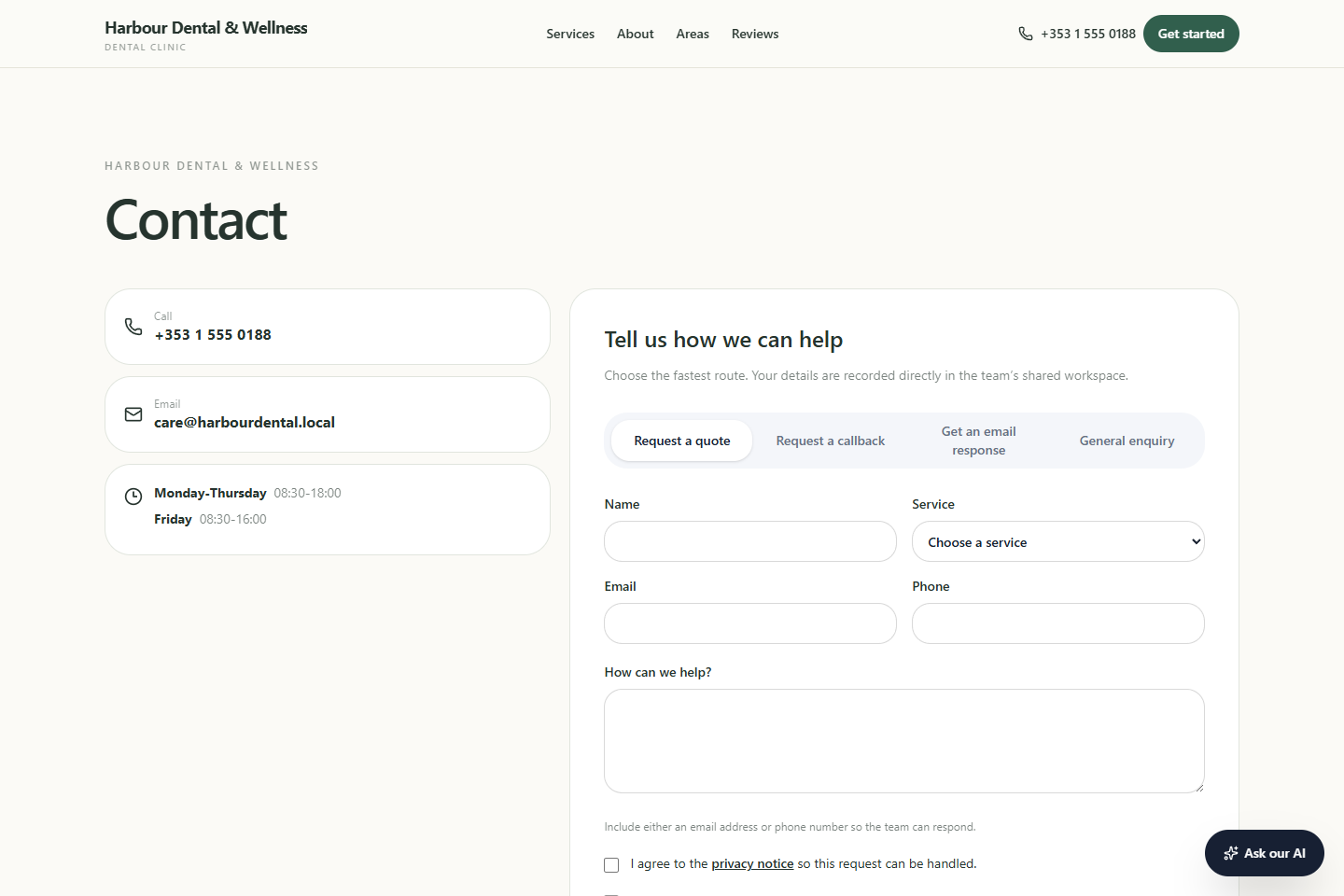
A customer chooses the most convenient connected route. AgencyLaunch creates the correct conversation or request, applies approved business knowledge, and guides staff or configured automation towards a suitable next step.
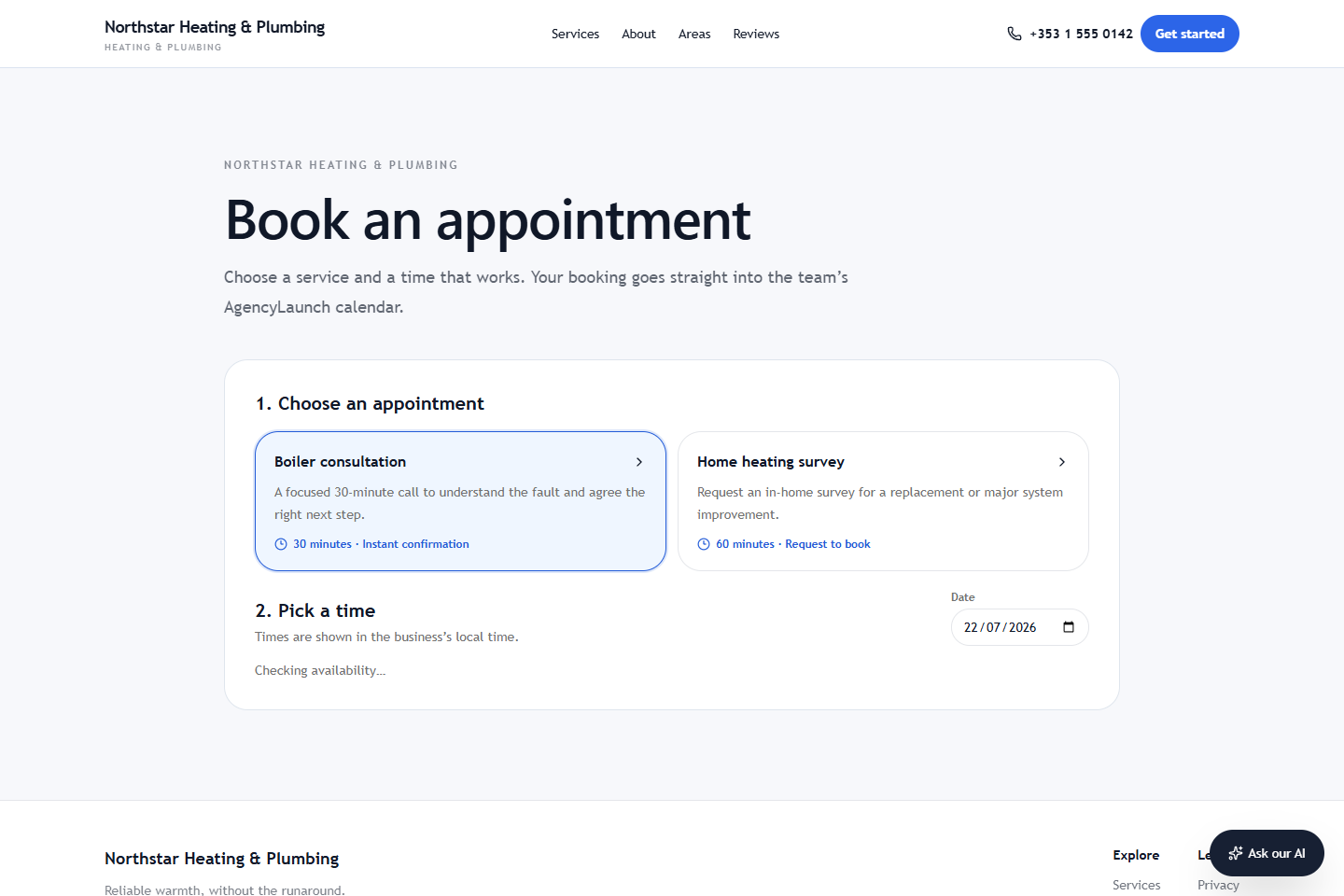
Forms and bookings
Quote
Creates a request, contact activity, and associated funnel record. Staff process it in Requests and the linked conversation.
Callback
Captures contact details and preferred window, then creates due work for the business.
Email-back
Creates a trackable written enquiry and response channel.
Booking
Shows only valid services and slots. Direct mode confirms a valid held slot; request mode waits for staff confirmation.
Chapter 19 · Recovery
Troubleshooting
Use the safest first checks before retrying, editing records, or escalating.
| Problem | First checks | Escalate when |
|---|---|---|
| Cannot sign in | Check the invited email, password, account status, and reset flow. Try one clean browser session. | The reset email does not arrive or the account is revoked unexpectedly. |
| Business or location missing | Check the current selector and ask an owner to confirm membership and location access. | The grant is active but the tenant remains invisible. |
| Account suspended | Contact the agency named on the screen. Your data is preserved; paying an external invoice alone does not restore access. | The agency owner must use Clients → Reactivate client and record a reason. |
| Client not found in search | Clients searches loaded records. Use Load more clients and check the selected agency. | The business still does not appear under an active management grant. |
| Permission denied | Confirm the task is appropriate for your role. Do not ask a colleague to share an account. | Your role should include the capability but the control still fails. |
| Data looks stale | Check filters, date period, business, provider health, and last sync time. Refresh once. | The source record changed but AgencyLaunch remains stale after a healthy sync. |
| AI unavailable | Check approved knowledge, provider status, usage budget, and the displayed fallback or handoff message. | Provider health is good but all new runs fail. |
| Google degraded | Check location mapping, credential status, last successful sync, and reconnect notice. | Reconnect completes but sync or reply publishing still fails. |
| Email did not send | Check delivery history, recipient, consent, quiet hours, suppression, retries, and provider status. | A valid active delivery exhausts its retries. |
| Booking conflict | Check resource, team member, time zone, holds, blackout, buffers, notice, and provider calendar. | AgencyLaunch and the connected calendar disagree after reconciliation. |
| Empty screen | Check business, status, search, date, and assignment filters. Clear the narrowest filter first. | Known records are absent with all relevant filters cleared. |
Chapter 20 · Access
Role and permission guide
AgencyLaunch authorises capabilities, not just pages. The exact controls shown can vary by business plan, management grant, and integration state.
| Role | Typical responsibilities | Important boundaries |
|---|---|---|
| Business owner | Business settings, members, operations, data, integrations, privacy decisions, reporting. | Platform-wide security, provider policy, and commercial controls remain with AgencyLaunch. |
| Business manager | Daily operations, assignment, scheduling, reputation, approved settings, team coordination. | Cannot assume owner-only privacy, commercial, or membership authority. |
| Business agent | Conversations, requests, appointments, tasks, notes, customer follow-up. | Normally cannot change business ownership, plans, retention, integrations, or governed settings. |
| Business analyst | Dashboards, analytics, health, and read-only operational review. | Does not change customer records or configuration. |
| Partner owner | Agency identity, own platform subscription, managed client access, owner invitations and transfers, suspension and reactivation. | No automatic platform-wide access and no ownership of business customer data. |
| Partner manager | Managed onboarding, approved configuration, readiness checks, support, and reporting for granted businesses. | Requires active management grants. Can manage non-owner client members; cannot transfer client ownership, suspend clients, or manage the agency subscription. |
Chapter 21 · Reference
Glossary
| AI citation | A reference to the approved knowledge used to support an AI answer or draft. |
|---|---|
| Appointment hold | A short-lived reservation that prevents two visitors from taking the same slot while booking completes. |
| Business management grant | The explicit relationship that allows a partner to manage defined capabilities for a business. |
| Client account | A service business managed by an agency. Its team accounts are separate from the end customers using secure portal links. |
| Conversation SLA | The response commitment used to show reply due, met, or breached states. |
| Direct booking | A public booking that confirms after a valid slot and hold complete successfully. |
| Knowledge revision | A versioned change to a source that must be reviewed and approved before becoming trusted. |
| Lead Rescue | The managed missed-enquiry workflow that detects a missed call, starts a compliant message conversation, creates CRM records, and tracks the outcome. |
| Customer Portal | A secure, branded, password-free customer view of appointments, requests, quotes, payment links, messages, documents, and recent activity. |
| QR campaign | A named permanent code and tracked redirect for a specific physical placement. Its destination can change without reprinting the code. |
| Opportunity | A potential commercial outcome linked to the contact and activity timeline. |
| QA | Quality assurance checks for business facts, customer routes, permissions, integrations, privacy, and operational readiness. |
| Requested booking | A proposed appointment that requires staff confirmation. |
| Resource | A staff member, room, team, vehicle, or equipment required for an appointment. |
| Service request | A quote, callback, email-back, or related action submitted by a customer. |
| Suppressed automation | A run that deliberately did not deliver because a rule, consent, quiet hour, or record state prevented it. |
| Agency / white-label partner | An authorised organisation that configures and supports managed businesses under its own portal branding. |